Most advice about a Facebook ad preview that isn't working starts in the wrong place. Clear your cache. Switch browsers. Duplicate the ad and rebuild it from scratch. That last instruction is the expensive one: rebuilding creates new ad IDs, drops the social proof and learning attached to the original, and leaves you with two versions of the same creative in the account, one of which you'll forget to pause.
Blank and incorrect previews rarely come from a broken tool. In the overwhelming majority of cases they come from one of four things: access you don't have, an asset the rendering pipeline can't decode, a placement that renders differently by design, or a platform incident that clears on its own. The preview panel is a diagnostic surface. Treat it as evidence, not as a bug report.
The triage order matters: access, status, asset, configuration. Run it in that sequence and most preview failures resolve without a single edit to the creative.
Table of Contents
- Match the Symptom to Its Most Likely Cause
- Check Permissions and Catalog Access First
- Clear Browser, Cache and Session Causes
- Rule Out a Meta Ads Manager Outage
- Fix Asset Problems That Blank or Crop Previews
- Tell a Broken Preview From an Accurate Rendering
- Confirm the Fix Before You Relaunch Ads
Match the Symptom to Its Most Likely Cause
Start with what you can see rather than what you suspect. The table below maps the symptom in the preview panel to the most likely cause and the first check to run before you touch anything.
| Symptom | Likely cause | First check |
|---|---|---|
| Blank or stuck loading | Asset codec, container or frame rate | Re-encode to H.264 MP4 and upload as a new creative |
| Fails in one browser only | Cache, extensions or stale session | Test in a second browser, then clear the cache |
| Cannot share the preview | Missing catalog, portfolio or ad account access | Confirm partial catalog or portfolio access, or advertiser access to the ad account |
| Wrong on one placement only | Placement asset customization | Open Edit on that placement and compare settings |
| Copy differs from the intended text | Blank primary text pulls copy from the destination URL | Fill the primary-text field |
| Footer URL missing in Feed | Rendering rule for single-media and Advantage+ catalog collection ads from March 2026 | Treat as product behavior, not a bug |
| Preview breaks after changing objective | Destination unsupported for the objective or conversion location | Match the destination to the objective |
| Fails across many ads at once | Platform incident in Ads Creation and Editing | Check Meta's Ads Manager status history |
Read the table by scope, not by order of rows. Scope tells you which layer is broken. A failure that repeats across every placement, in every campaign, on every machine points upward, to the account, the platform or the asset itself. A failure that appears on Stories but renders fine in Feed points downward, to placement settings or the specific crop Meta is trying to produce.
Rule of scope: a preview that fails across every placement points to account or platform causes. A preview that fails on one placement points to creative or placement settings.
The browser column adds a second axis. One browser failing means your local environment; all browsers failing on the same device usually means the same thing, since extensions and cache travel with the profile; all devices failing points back to the account or the asset. Run the widest comparison you can afford before you start editing, because a rebuild on a misdiagnosed permissions issue doubles your work and changes nothing.
That's why the table sets the order of work: check access and status before touching the creative. Both cost nothing to verify and both explain a large share of failures that look creative but aren't.
Check Permissions and Catalog Access First
Permission problems never throw an error that says "permission". The preview refuses to render or share, and the natural assumption is that something is wrong with the ad. Meta's own troubleshooting guidance for ad previews names three acceptable access levels for sharing a preview: at least partial access to the catalog, partial access to the business portfolio, or advertiser access to the ad account. It also flags out-of-date catalog information as a documented cause in its own right.
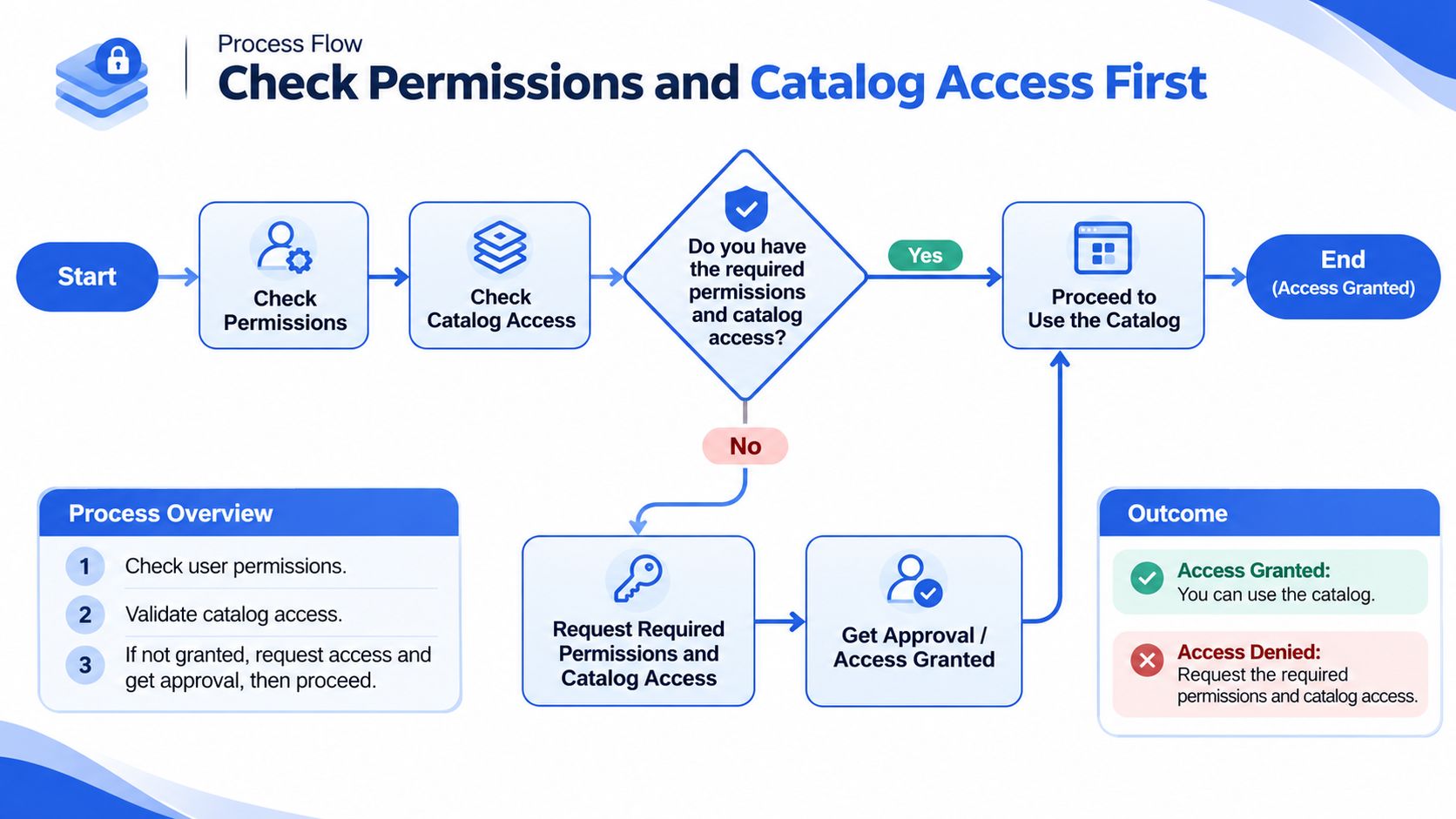
Work through these checks in order and stop at the first one that fails.
Confirm partial access to the business portfolio that owns the catalog. Portfolio is the top of the chain. If your business isn't attached to the client's portfolio, every downstream asset inherits that gap, including catalogs you can see but can't use.
Confirm partial catalog access, or advertiser access to the ad account. Either route satisfies Meta's requirement for a shareable preview. The failure mode is having neither while still holding editing rights on the ad, which is exactly the combination that makes the tool look broken.
Grant roles to the business, not just to a person. For agencies, the trap is access granted to one named user, often the person who set the account up. The moment that person is on leave, the preview stops working for the rest of the team, and the ticket gets filed as a creative problem.
Check the catalog for stale product data. Retired SKUs, broken feed URLs and products that no longer match the ad's destination all degrade what renders. If a client's product feed updates nightly, recheck after a scheduled refresh rather than mid-sync.
Re-open the preview from the ad account you own, not from a shared link. A URL pasted into Slack can carry session context that hides the problem. Opening it directly in the account you're logged into shows the same view a colleague will get.
Only when access and catalog both check out, move to asset checks. This is the handoff point. Nothing about a codec problem reveals itself until permissions are ruled out.
If the access gap traces back to how the client's side was structured, creating a Facebook Business Manager account covers portfolio and role setup at the level where these failures originate. And before auditing access across dozens of client accounts, it's worth confirming the accounts themselves are structurally sound, which is exactly what Crank 11's ad account audit guide walks through.
What a passing check looks like
The preview opens from the same ad account for every user who needs it, and the catalog shows current products. That's the bar. A team member who can edit an ad but can't see its catalog is the classic case: sharing fails, the ad gets rebuilt twice, and the root cause never appears in any error message.
Clear Browser, Cache and Session Causes
Run this sequence only when the preview fails in one browser or on one device while rendering elsewhere. It takes four minutes and rules out your own machine entirely.
Open the same ad in a private window with extensions disabled. If the preview renders there, the fault lives in the browser profile, not the ad.
Test a second browser on the same machine. If the failure follows the account rather than the browser, the cause is on Meta's side or in permissions, and you can stop here.
Log out of Facebook and back in. A stale session produces exactly the symptom you're chasing: a preview frame that loads its shell and then stalls. Reopen Ads Manager at the ad level, not the campaign view.
Clear cookies and cached files for facebook.com only. Wiping the whole browser breaks every other login you depend on for no added benefit.
Disable ad blockers and privacy extensions for the Ads Manager domain. Preview frames are iframes, and aggressive blockers treat them as tracking pixels.
Record which browser, profile and device rendered the preview correctly. That record tells you whether to keep working in that setup or rebuild the access on a clean profile.
If a clean, extension-free session still fails, the browser is exonerated. Move to the status check.
Rule Out a Meta Ads Manager Outage
Some preview failures are a timing problem. Independent monitoring of Meta's official status records found more than 1,121 reported outages affecting Ads Management and Reporting across roughly four years beginning in September 2022. Meta publishes a dedicated Ads Manager history split into Ads Creation and Editing, Ads Delivery, and Ads Reporting, and it's the first of those three that maps to a preview that won't render or an editing panel that won't open.
| Benchmark | Value | Context |
|---|---|---|
| Reported outages affecting Ads Management and Reporting | More than 1,121 | Roughly four years from September 2022 |
| Longest tracked major incident | 4 hours 50 minutes | December 11, 2024 |
| Incidents in a twelve-month review | 21 | Of which 6 involved Ads Creation and Editing |
| Median resolution time | About 1 hour 50 minutes | Across the twelve-month review |
| Incidents ended within three hours | 19 of 21 | Escalate only if an incident passes this threshold |
The same twelve-month review found 21 incidents, 6 of them in creation and editing, with a median resolution time of roughly 1 hour 50 minutes and 19 of the 21 closed within three hours. That last figure is your working threshold: if a suspected incident runs past three hours, the odds shift and you should assume something else is contributing.
The check itself
- Open Meta's Ads Manager status history and read the Ads Creation and Editing column first.
- Record the timestamps of every failing preview attempt. Precise times turn a vague complaint into something you can match against an incident window.
- Test a second campaign or a second ad account. Scoped failure means it isn't the platform.
- If an incident is open, pause rebuilds and wait. Rebuilding during an outage leaves ad sets with half-applied settings that persist after the platform recovers.
- If no incident is listed and the failure persists, return to permissions and asset checks with the browser ruled out.
If the preview, the editing controls and the publish button all fail at the same moment, that's a platform signature, not a creative one.
The costly mistake here isn't waiting. It's re-uploading a dozen creatives mid-incident, ending up with duplicates, inconsistent budgets across duplicated ad sets, and a reporting mess that takes longer to clean than the outage took to resolve.
Fix Asset Problems That Blank or Crop Previews
A blank frame, a spinner that never resolves, or a crop that cuts the product out of shot usually means the rendering pipeline cannot process the file. Blame the interface last. Validate the asset against Meta's developer documentation on ad creative specifications before touching anything in the UI, because a file that plays perfectly on your desktop can still stall on Meta's encoder, which is the only encoder that matters here.
| Asset check | Target value | Why it matters |
|---|---|---|
| Feed video | 4:5 at 1440 × 1800 px | Meta's feed guidance; avoids automatic cropping |
| Vertical video | 9:16 | Stories and Reels crop Feed-sized files differently |
| Square fallback | 1:1 | Useful when a 4:5 crop fails in one placement |
| Video codec and container | H.264 in MP4 or MOV, square pixels | Standard encoding avoids processing and preview stalls |
| Frame rate | Fixed, not variable | Variable-rate phone footage can break rendering |
| Audio | AAC stereo at 128 kbps or higher | Required baseline for a clean encode |
| Image format | JPG, JPEG, PNG, GIF, BMP or WebP | Unsupported files stay blank in preview |
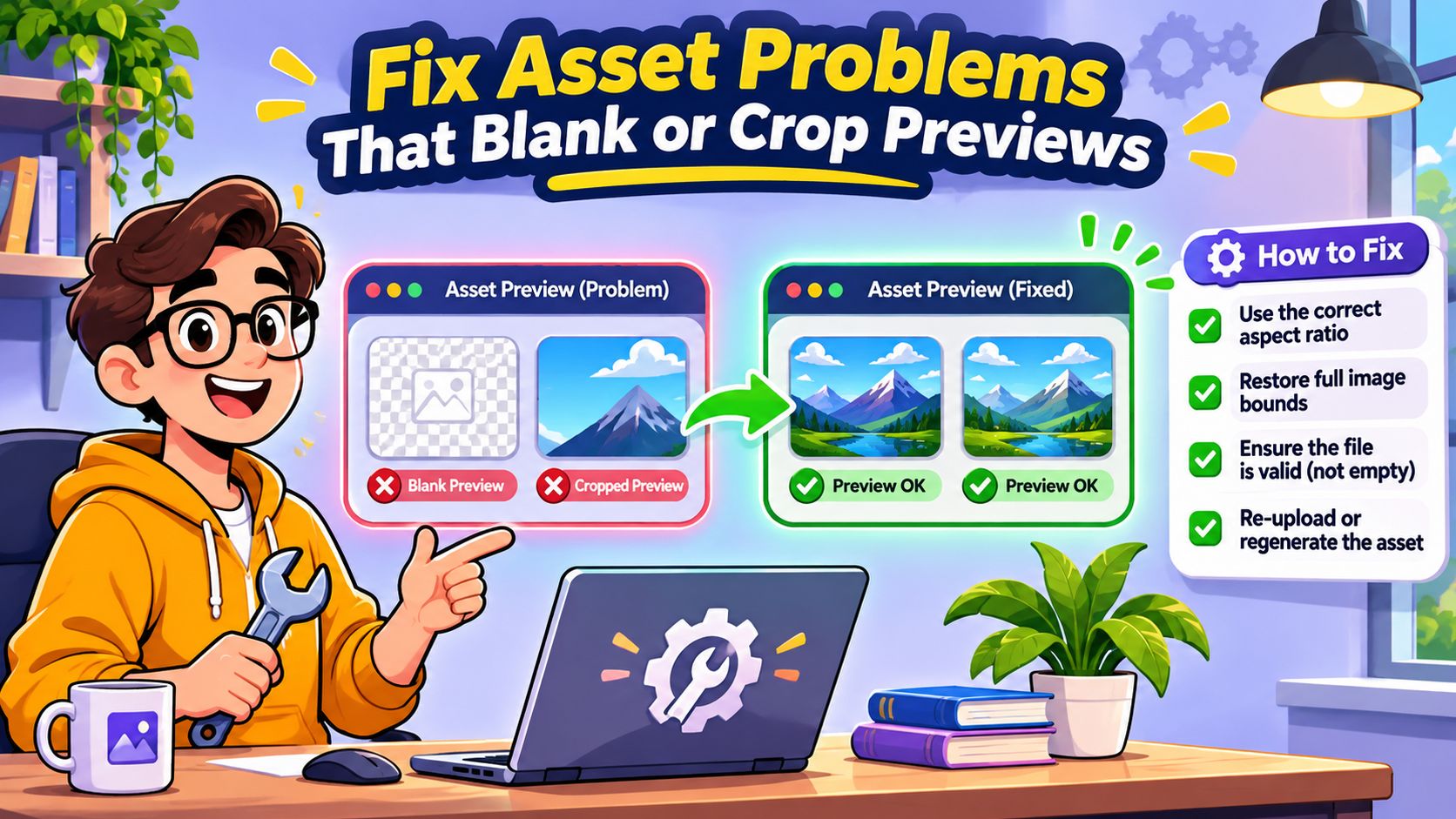
The encode order that fixes blank previews
Inspect the encoded file, not the source. Use a media inspector such as MediaInfo to read actual dimensions, frame rate, rotation metadata, audio stream and final file size. Phone footage frequently carries rotation flags that the encoder honours differently from your player, so the asset you think you uploaded is often not the asset Meta received.
Re-encode variable-frame-rate footage to a clean H.264 and AAC MP4 with square pixels and a fixed frame rate. Every editor exports VFR by default now, and it is the single most common cause of a preview that hangs at the first frame.
Strip edit lists and special container boxes. These container details cause processing and preview inconsistencies while staying invisible in a normal player, which is why playback looks fine right up until upload.
Prepare a separate file per placement. Build 4:5 for Feed and 9:16 for Stories and Reels rather than trusting automatic cropping. For image assets, check the ideal Facebook ad sizes against each placement before upload, since a crop that looks acceptable in Feed can cut a headline in Reels. If the same campaigns run display alongside Meta placements, see Excellorix banner dimension breakdown for the equivalent sizing pass on the Google side.
Upload the fixed file as a new creative. Replacing the asset in place can keep the broken rendition attached to the ad. A new creative forces a fresh encode.
Preview each placement independently before changing copy, targeting or budget. Change one variable at a time or you learn nothing from the result.
The recurring pitfalls are predictable: relying on automatic cropping, uploading VFR phone footage straight from a shoot, carrying odd container metadata into the upload, and assuming a successful upload means every placement can render. Treat a failed preview as the encoder reporting a spec violation, and most blank previews resolve at step 2 or step 4 without a rebuild.
Tell a Broken Preview From an Accurate Rendering
The assumption baked into most troubleshooting guides is that the preview should be an exact replica of the published ad. It shouldn't, and it increasingly isn't. Meta's guidance on previews and rendering differences describes previews as placement- and device-specific approximations, with rendering and interaction varying by device, format, placement and creative enhancements. The desktop preview also can't display every possible combination for Flexible ads.
Keeping that record straight across dozens of creatives is its own discipline; a documented Meta creative hub workflow for cataloguing which asset serves which placement is what makes the comparison test below reliable.
That reframes the question. A "wrong" preview may be a more accurate warning than a failed tool. Before you file it as a bug, work out which of the two you're looking at.
The five-step separation test
- Inspect each placement separately. Feed, Stories, Reels, in-stream and Audience Network all render the same asset differently. A single desktop view tells you about one combination.
- Test on a real mobile device. Device rendering is where a preview and the published ad diverge most often, and it's the environment most buyers never check.
- Compare the asset customization settings for the affected placement. Wide discrepancies usually trace back to a customized asset someone uploaded months ago and forgot.
- For Flexible ads, check several combinations. Judging one static combination of images and videos tells you almost nothing about what any given user will see.
- Apply the verdict test. If the wrong render appears on one placement across every device, that's a configuration issue to fix. If it matches the placement's documented rule, the preview is accurate.
One dated example matters for planning. From March 2026, single-media and Advantage+ catalog collection ads in Facebook Feed no longer show a URL in the footer, per Meta's documentation. A missing footer link in the Feed preview after that date is intended product behaviour, not a rendering fault, and briefing clients on it in advance prevents a round of confused screenshots.
Keep dated screenshots per placement. When you need to prove a render to a client or to Meta support, a timestamped image of the exact placement, device and date settles the argument faster than any description.
The contrarian reading is the useful one: a preview that looks subtly wrong is doing its job. It's showing you the placement variation your live ad will deliver before you spend budget discovering it.
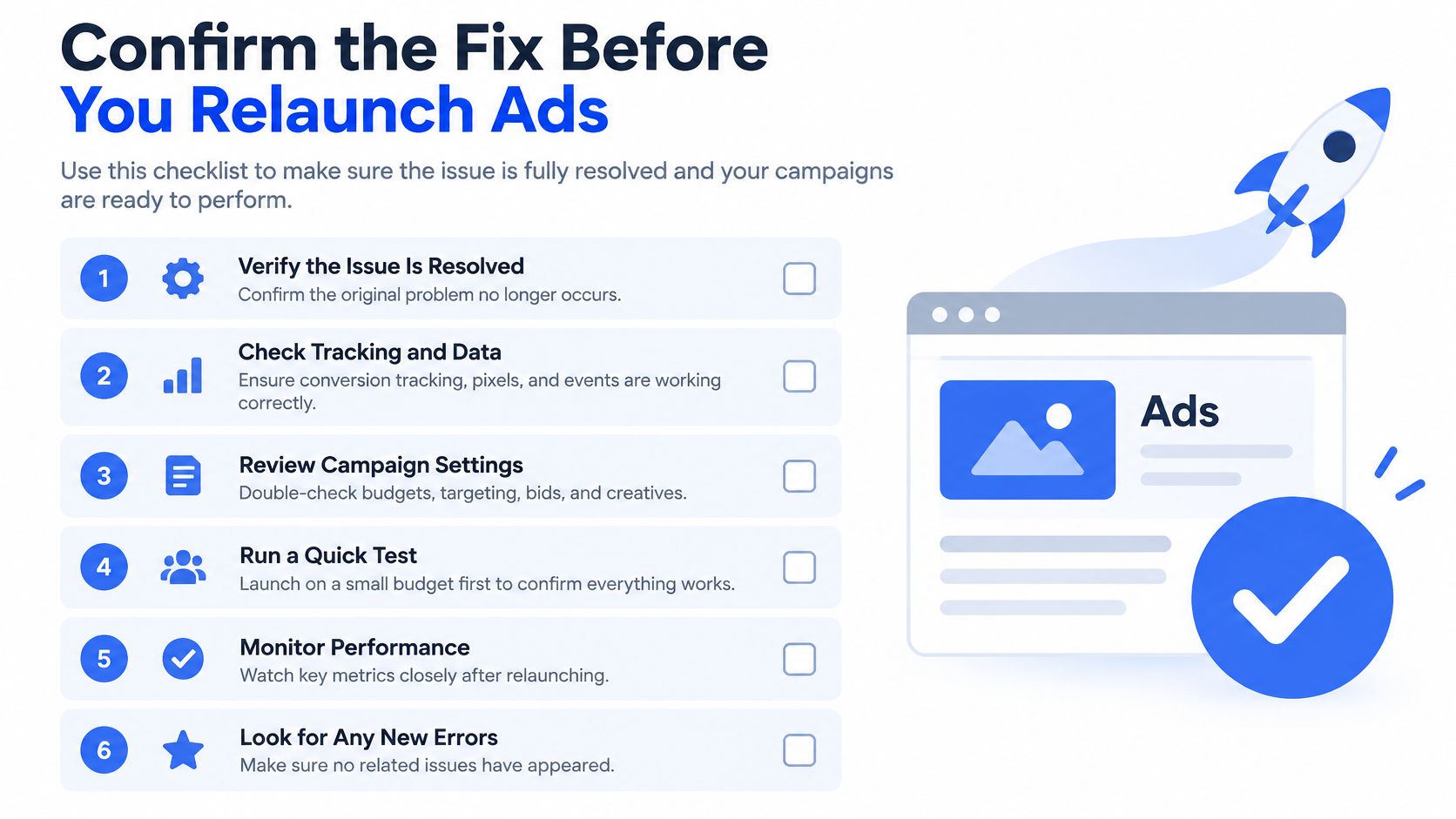
Confirm the Fix Before You Relaunch Ads
Verification is where fixes get confirmed or fail. Meta's workflow for editing a single placement from the ad level is the right frame for this, and it starts below the campaign overview: previews live at the Ad level.
- Tick the checkbox for the saved ad at ad level, not from the campaign overview.
- Choose Edit to open the side panel and inspect the placement previews, using the same per-placement comparisons you ran in the rendering test.
- Select the placement that failed to open its detailed view.
- Use the Edit option above the preview to correct the asset, copy or link for that placement only. Editing the whole ad to fix one placement is how secondary breakage gets introduced.
- Publish the update and recheck on a real mobile device, not just in the desktop panel.
The pre-relaunch checklist
Run this before any ad goes live after a preview fix:
- Every placement renders. Not just the one that failed.
- Crops match the spec table. 4:5 in Feed, 9:16 vertical, no automatic crop doing the work.
- The footer matches the March 2026 rule for single-media and Advantage+ catalog collection ads in Feed.
- Primary text is filled, so Meta isn't pulling copy from the destination URL.
- Access is confirmed for every user who edits the ad, not just you.
When the same asset fault has hit several ads, re-upload the corrected file to each rather than editing them piecemeal, then recheck the spec table on every one. That's the point where batch tooling earns its place: Rapid Ads launches a whole batch of ads to Meta Ads with one click, and 100 ads can go live in under 10 minutes, so a corrected file across forty ads takes a coffee rather than an afternoon of repetitive uploads.
Fix one cause at a time. Verify it. Then relaunch.
Preview failures are rarely mysterious once you stop treating them as creative problems by default. Access, status, asset and placement configuration account for nearly all of them, and each one has a check that takes minutes. Rapid Ads was built for the moment after the diagnosis, when the fix is a clean batch of corrected creatives that needs to go live across multiple accounts without a single manual upload, with auto-naming conventions to keep the reporting readable and Advantage+ enhancements kept off so the asset you verified is the asset that serves. More than 2 million ads have been launched through it, and you can test the workflow on a free plan with 10 uploads. Visit Rapid Ads to see how the batch launch works.