The standard advice for any Ad Creator Facebook workflow is simple: upload more creative, turn on Advantage+, and let Meta sort it out. That advice is exactly why so many accounts lose control. More assets without placement discipline creates cropping errors. More automation without an audit creates settings you didn't choose. More rotation without a test design creates spend you can't interpret.
I would invert the sequence. Build to spec first, decide what stays locked, name everything so reporting survives scale, and treat every automated setting as a claim you re-check after launch. Publishing is the easy step. Preserving intent after publishing is the work.
Table of Contents
- Placement Specs to Build Before You Upload
- Flexible Ads or Single-Creative Ads
- Naming Conventions and UTM Tagging at Scale
- Build the Ad Step by Step in Ads Manager
- Lock the Settings Meta Changes Silently
- Testing Creative Without Mistaking Rotation for Learning
- Run the Pre-Launch Gate and Budget Timing
Placement Specs to Build Before You Upload
A file can pass upload checks and still be wrong for its placement. Build exports around the aspect ratio first, then check how each version renders on a phone.
For Feed, Meta's placement specifications recommend a 4:5 image at 1080×1350 pixels. The guidance also lists JPG or PNG, a minimum width of 600 pixels, and a maximum file size of 30 MB. A 1:1 export can serve as a cross-placement alternative, though it uses less vertical screen space in Feed. Use the ideal size for Facebook ads as a reference when setting export presets.
Creative Specs by Placement
| Placement | Aspect ratio | Suggested export size | Limits and notes |
|---|---|---|---|
| Feed image | 4:5 | 1080×1350 | JPG or PNG, minimum width 600 px, maximum 30 MB |
| Feed fallback image | 1:1 | 1440×1440 | Cross-placement option, less vertical screen space than 4:5 |
| Stories and Reels video | 9:16 | 1080×1920 | Keep key text and claims in the central safe area, clear of top and bottom overlays |
| Stories and Reels image | 9:16 | 1080×1920 | Same safe-zone rule as video, JPG or PNG within platform file limits |
The main risk is a file that is accepted but displays poorly. A 1:1 image takes up less vertical screen space in Feed than a 4:5 image. A Feed composition moved into Stories or Reels can crop the product, headline, or proof point. Separate variants protect legibility and keep the intended composition intact.
Before upload, check file type, dimensions, aspect-ratio tolerance, file size, mobile legibility, destination URL, and preview rendering. Review a representative ad from each asset class in Meta's preview environment. Look for overlay collisions and awkward crops. If text only reads clearly on desktop, revise the asset before publishing.
Production rule: If the hook, product, and claim don't survive the preview at phone size, don't publish the asset and hope placement optimisation fixes it.
Keep production spend and creative testing separate: poorly formatted assets make it harder to judge the concept, regardless of budget. Teams planning spend alongside production can use Facebook ad budgets for small businesses as a budgeting reference.
Flexible Ads or Single-Creative Ads
Flexible ads trade attribution clarity for object efficiency, and single-creative ads trade maintenance effort for control. Neither is the default correct answer. The right container depends on whether you're still learning which concepts work or scaling assets you've already validated.
The Meta Flexible ad format documentation states that a single Flexible ad can contain up to 10 images and videos, with Meta selecting a single image, video, or carousel presentation for each person, placement, and audience. It's available at ad level for Traffic, Engagement, Sales, and App promotion objectives. Manually separated ads preserve explicit one-creative-per-ad control, but they multiply the objects you configure and maintain.
Flexible Ads Versus Single-Creative Ads
| Criterion | Flexible ad | Single-creative ad |
|---|---|---|
| Assets per ad | Up to 10 images and videos | One creative per ad |
| Format output | Meta selects single image, video or carousel per person and placement | The format you chose at build |
| Supported objectives | Traffic, Engagement, Sales, App promotion | Available across objectives outside that Flexible list |
| Creative control | Limited to the asset pool, Meta picks the combination | Full control over which creative each person sees |
| Objects to maintain | Few ads, many assets | Many ads, one object per creative |
| Best use | Scaling validated assets | Concept-level tests with clean attribution |
I would use single-creative ads to decide which concepts earn a place in the pool. One hook, one format, one proof element per ad means your CPA read points at something specific. Once several assets have cleared that bar, Flexible becomes a reasonable scaling container, because you're asking Meta to match known-good assets to placements rather than asking it to run an experiment you can't read.
Don't reverse that order. Bundling untested assets into Flexible from day one gives you delivery, not learning, and you'll struggle to brief the next batch because you won't know what drove the result. Name Flexible ads after the asset set they contain, keep single-creative tests carrying the causal read, and check the campaign objective before you build anything. If the objective isn't on the supported list, the decision is already made for you.
Naming Conventions and UTM Tagging at Scale
Apply naming before bulk publication, not as cleanup after reporting breaks. The Meta Ads Manager naming instructions separate the Ad set name field from the Ad name field, and those names sit at different hierarchy levels. That separation is useful. It lets each level carry different metadata instead of cramming every dimension into one unreadable string.
Naming Pattern by Hierarchy Level
| Level | Name field | Encode | Example |
|---|---|---|---|
| Campaign | Campaign name | Objective, funnel stage, quarter | SALES_TOF_2026Q4 |
| Ad set | Ad set name | Market, audience, placement group, budget type | UK_Broad_Feed_CBO |
| Ad | Ad name | Concept, hook, format, angle, iteration | TST_Testimonial_HookB_9x16_v2 |
Keep the rules boring and enforceable. Use one separator, one spelling for every market and placement code, and explicit versioning so v2 is never confused with a re-upload of the same file. If two buyers on the same team would name the same ad differently, your convention isn't finished yet. Write it down, encode it in your launch process, and reject anything that arrives off-pattern.
Your UTM structure should mirror the hierarchy so analytics and Ads Manager tell the same story. A practical setup looks like this:
- utm_source: facebook, fixed across every ad
- utm_medium: paid_social, fixed across every ad
- utm_campaign: mapped to the campaign name using Meta's dynamic parameters
- utm_term: mapped to the ad set name
- utm_content: mapped to the ad name, so concept and iteration survive into your analytics tool
Dynamic parameters only help if the underlying names are consistent. A campaign called "Copy of Copy of Sale" produces campaign reporting nobody trusts, no matter how clean the UTM template is. The detailed breakdown of Facebook URL parameters covers the available fields and how to attach them at account or ad level.
At dozens of ads this is discipline. At hundreds across markets it's operations. The naming step is usually the first thing a rushed launch drops, and it's the one you can't reconstruct later, because the metadata about which hook ran where lives nowhere else once the ads are live.
Build the Ad Step by Step in Ads Manager
Walk the build in the order Ads Manager expects, because the Enhancements controls only surface at specific stages and skipping ahead is how defaults slip through. The flow below shows where each decision point sits.
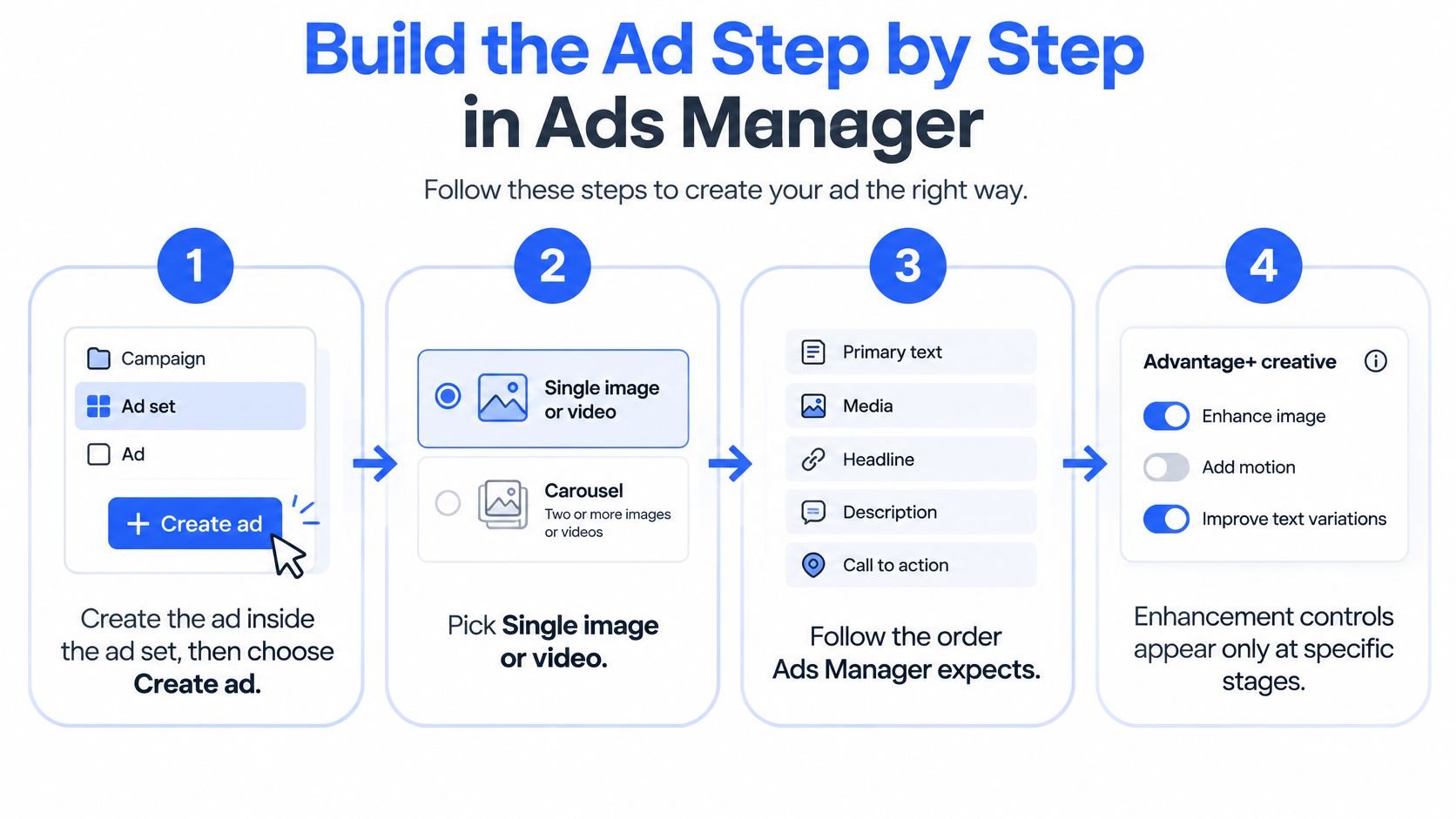
Create the ad inside the correct ad set. At Ad setup, choose Create ad, then pick Single image or video or Carousel to match the asset you're launching. Building in the wrong ad set and duplicating later is how targeting and budget settings get inherited by ads that were never meant to carry them.
Upload the creative built for your lead placement. Don't upload a compromise file and plan to fix placement variants afterwards. The asset class you lead with determines what the preview shows you, and preview is your last cheap checkpoint.
Open Set up creative, go to Enhancements, and switch off what you don't want before writing copy. The Meta guide to Advantage+ creative enhancements confirms you can disable individual enhancements during creation through the Enhancements section, and inspect variations in Advanced preview under the Advantage+ creative tab. Meta also notes some enhancements are only exposed in Advanced preview rather than the main Ad creative panel. Whatever stays enabled is what Meta builds variations from, so this decision comes before copy, not after.
Check Advanced preview placement by placement. Generated variations, crops, and text treatments become visible here. If a variation rewrites or repositions something your compliance review approved, turn that enhancement off rather than accepting the risk.
Add primary text, headline, destination URL with UTMs, and CTA. Then name the ad with your convention. If you're producing video variants for this step, you can test multiple AI video ad hooks as separate iterations, provided each one enters the build as its own named asset rather than an unlabelled upload.
Publish, then reopen the ad from the Ads view. Click Edit, open the Advantage+ creative section, and confirm the enhancement state saved as you set it. The same controls remain available after publication, which is useful, but it also means the saved state deserves verification rather than trust.
The video below walks through the Ads Manager build sequence so you can match each menu label to the steps above.
A correct build is easy to describe. The creative running is the creative you uploaded. The enhancements active are the ones you deliberately kept. The ad name tells you concept, hook, and format without opening the file. If any of those three statements is false, the ad isn't finished, whatever the publish button says.
Lock the Settings Meta Changes Silently
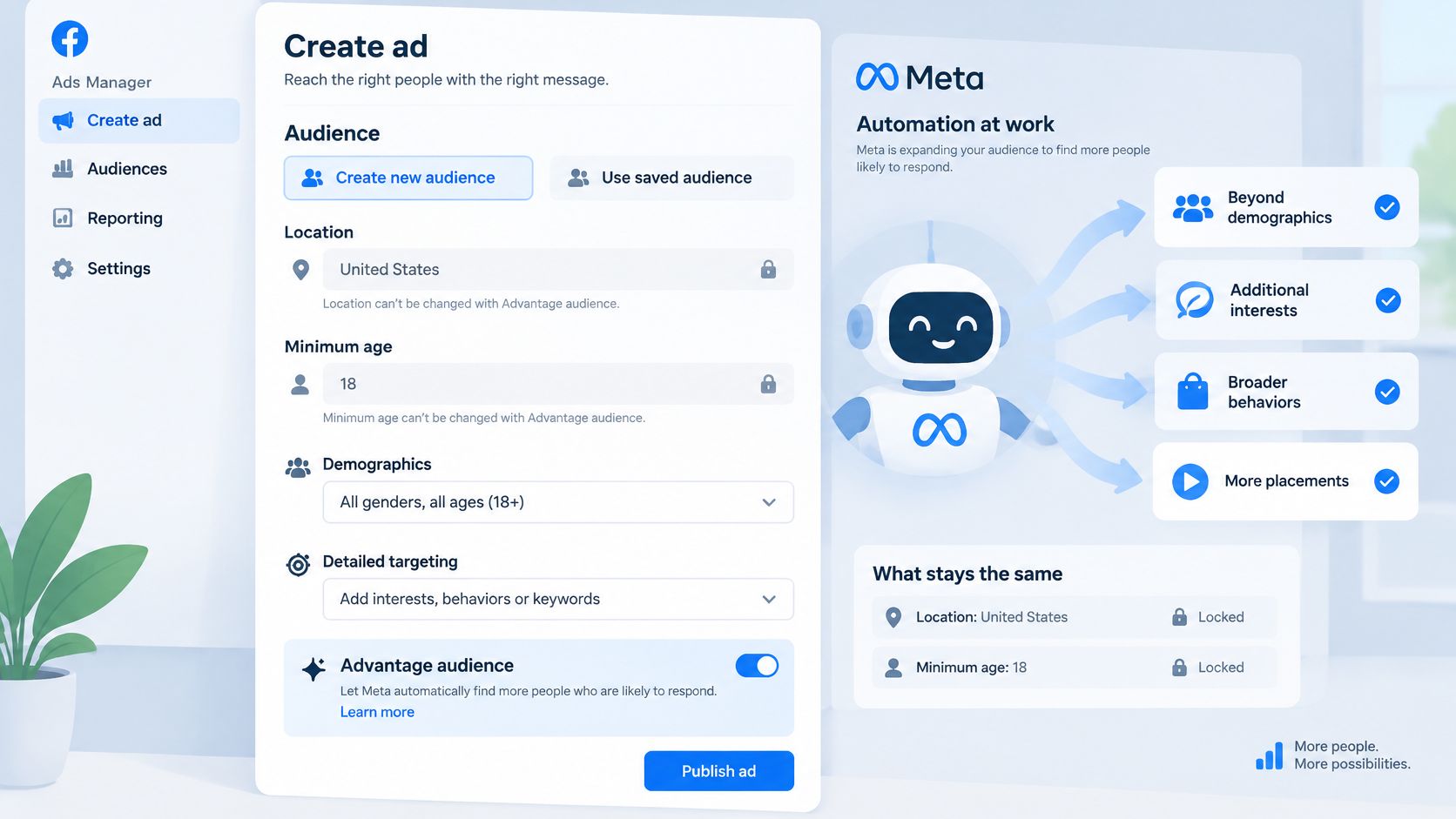
More automation is not automatically better. That's the assumption worth challenging, because Advantage+ now reaches into audience, placement, budget distribution, and creative simultaneously. Reporting on Meta's Advantage+ control trade-offs notes that Advantage+ Audience can expand beyond most demographic and detailed-targeting inputs, while location and minimum age remain among the stronger controls, and that Meta removed detailed-targeting exclusions in January 2025, citing 22% better performance without them. One reported incrementality test in the same coverage attributed only 17% of conversions to Advantage+ compared with the conversions claimed by Meta's attribution system.
The screenshot below shows where audience automation settings sit in Ads Manager, which is where the lock-or-automate decision becomes concrete.
Split your settings into two lists before you publish anything.
Lock These Before Publishing
- Location and minimum age: These behave as hard constraints, so verify them against the brief on every ad set.
- Creative enhancements: Switch off what you don't want in Enhancements and confirm the state in Advanced preview.
- Brand and compliance copy: Keep approved claims out of any enhancement that rewrites or generates text.
- Destination URLs and UTM parameters: These carry your measurement, so they shouldn't be editable by anything automated.
Let These Run, With a Control
- Placement distribution: Meta's delivery across placements usually beats manual splits, so restrict placements only for a stated reason.
- Budget distribution inside CBO: Let the campaign allocate, but test it against an ABO control before you commit the account to it.
Automation is a claim about performance, not a proof of it. Validate it with independent measurement before you scale it.
Audit after launch, not just at build. Enhancements exposed only in Advanced preview can drift when ads are edited, and a bulk upload can reintroduce defaults you removed manually. This is the specific job Rapid Ads handles with its auto-disable setting, which keeps Advantage+ creative enhancements off across bulk uploads instead of relying on each manual build remembering to switch them off. Whether you use a tool or a checklist, the audit habit is essential. Settings are not one-time choices anymore.
Testing Creative Without Mistaking Rotation for Learning
Ad rotation can keep delivery moving without teaching you which idea works. Separate concept tests from iterations before spending: a concept test compares distinct approaches, such as product demonstration, testimonial, problem-solution, or offer-led. An iteration changes one variable, such as the hook, opening frame, proof element, CTA, or editing pace. Keep audiences, optimisation events, attribution settings, and budgets consistent across variants so delivery differences do not masquerade as creative effects.
The comparison below separates a deliberate test from simple rotation.
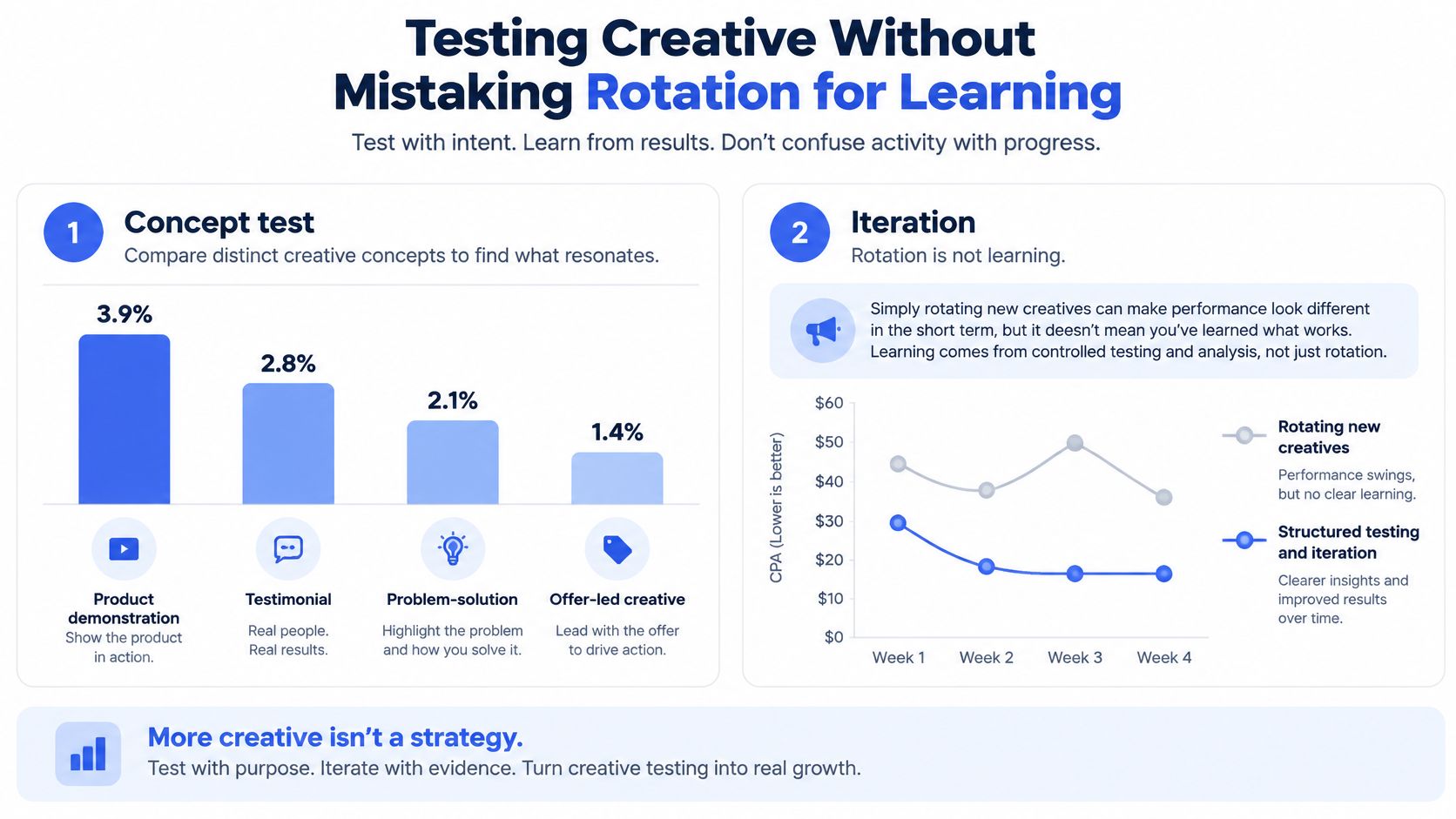
Use thumb-stop or video-view signals to screen early, then judge winners by purchase CPA, qualified-lead cost, or contribution margin. A high CTR that attracts the wrong click is not a win. Sound is a test variable too: choose a track deliberately and choose music for Facebook ads, rather than leaving it to an editor's preference. For a structured sequence from concept tests to iterations, use this creative testing framework.
Creative Test Stopping Rules and Fatigue Benchmarks
| Rule | Threshold | Status |
|---|---|---|
| Creatives per ad set | 3 to 5 | Operating heuristic |
| Budget share for testing | 15% to 20% | Operating heuristic |
| Minimum test duration | 7 days | Operating heuristic |
| Conversions per variant before naming a winner | 15 | Operating heuristic, raise for low-volume accounts |
| Pause when zero purchases | 3× target CPA | Operating heuristic |
| Pause when CPA stays above target at day 10 | 50% above target CPA | Operating heuristic |
The Bind Media creative testing framework recommends three to five creatives per ad set, allocating roughly 15–20% of budget to testing, running tests for at least seven days, and waiting for at least 15 conversions per variant before naming a winner. It also sets pause rules at 3× target CPA with zero purchases or 50% above target CPA by day ten. Treat these as operating heuristics, not statistical law. Low-volume accounts need longer tests; high-volume accounts can use confidence intervals.
Creative volume and creative fatigue are different problems. More assets give Meta more options to rotate, but rotation alone does not establish that a concept is working. Repeated exposure to the same asset can gradually reduce its response. Watch for rising frequency alongside worsening CPA while concept-level CTR stays flat. If budget shifts to the least-fatigued asset, ad-level results can make a weakening concept look healthy. Report results by concept as well as by ad, and refresh the idea when multiple executions of it stop delivering.
Run the Pre-Launch Gate and Budget Timing
Run the gate as yes-or-no items after the build. Stop at the first no. Fixing one ad in draft is cheap. Fixing two hundred live ads is an afternoon gone.
The checklist below summarises the gate in the order you should run it.
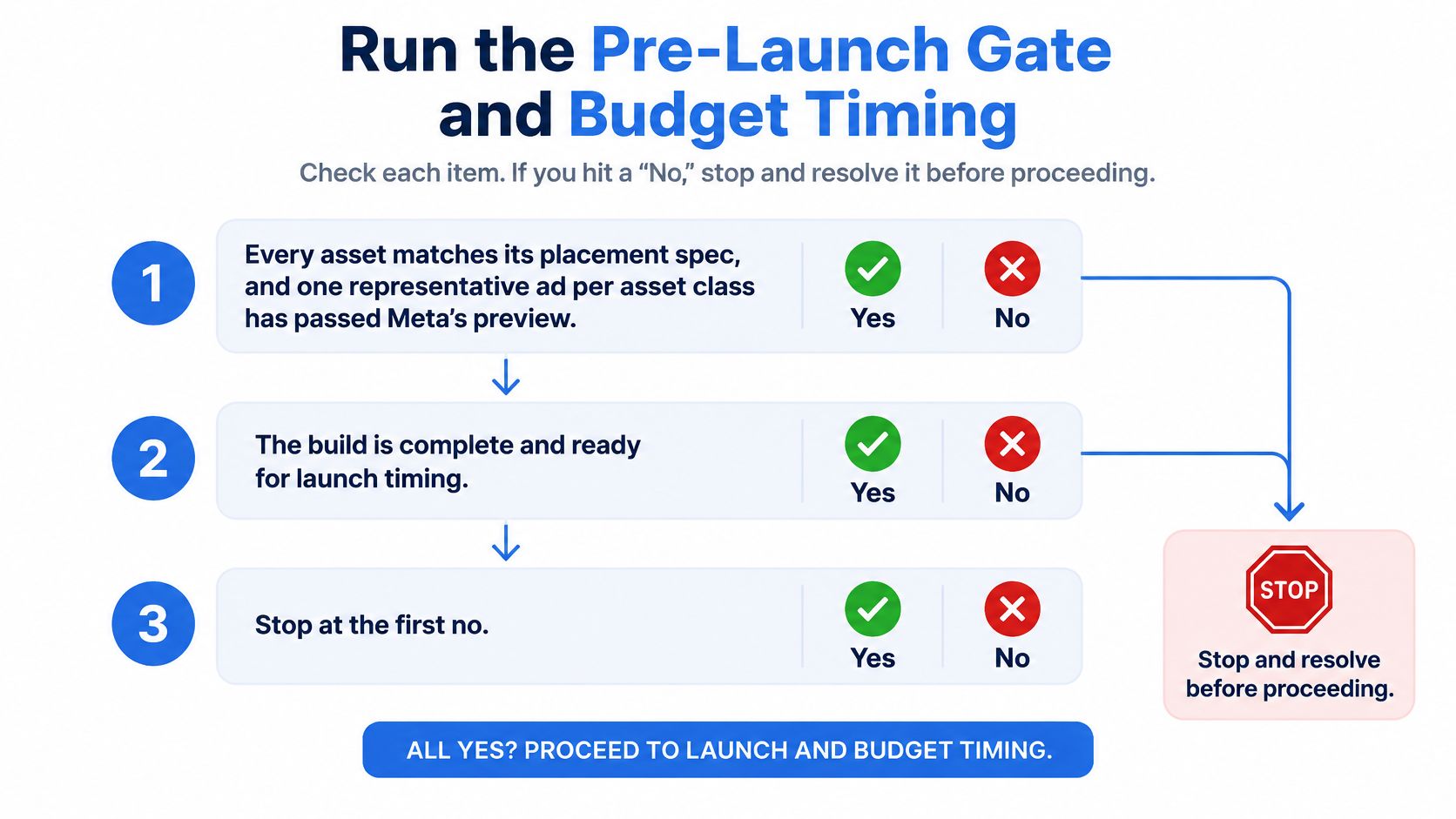
- Every asset matches its placement spec. One representative ad per asset class has passed Meta's preview, with no overlay collisions or cropped claims.
- Locked settings are still locked. The enhancements you switched off are off in Advanced preview, and location and minimum age match the brief.
- Naming and tracking are complete. Every ad set and ad follows the pattern, and every destination URL carries its UTM parameters.
- The budget structure is final. No ad set is waiting on a CBO-versus-ABO decision you'll make after launch.
The last item has a timing constraint buyers routinely forget. The Meta guide to Advantage+ campaign budget states that when Advantage+ campaign budget is enabled, the campaign and all ad sets must be published before the setting can be used, a change may take up to 15 minutes to take effect, and advertisers must wait 2 hours before turning the setting off again. A rollback planned late on a Friday can leave a mixed structure running all weekend.
Schedule launches with those windows in mind. Bulk configuration of budget settings before publication reduces the risk of partially edited structures, where half your ad sets carry one budget logic and half carry another. Publish once, in the structure you want, and let the gate be boring. Boring launches scale.
If your launches involve hundreds of creatives across multiple accounts, Rapid Ads lets you bulk upload assets, enforce naming conventions and UTM tags at both ad and ad set level, and keep Advantage+ creative enhancements disabled across every upload. Configure your defaults once, publish in minutes instead of hours, and spend the saved time on testing and analysis.