
The most popular answer to the ideal size for Facebook ads is also the most misleading one. It's usually a single export preset, often a square, presented as if it will travel cleanly through Feed, Stories, Reels, Marketplace and in-stream video. It won't. A file can be technically eligible in several placements and still be cropped, masked, enlarged or trimmed differently in each one.
Treat size as a versioning system, not a preset. That means deciding pixel dimensions, ratio, file limits and safe zones by placement before you build. For buyers running CBO and ABO structures at scale, the consequence isn't cosmetic. A wrong ratio confounds a placement split, pollutes CTR and CPA comparisons, and makes a retargeting asset look weak when the actual problem is composition.
Table of Contents
- Recommended Pixel Sizes for Every Placement
- Choosing Between 4:5 and 1:1 for Feed
- Building a Native 9:16 Master for Stories and Reels
- Safe Zones and Crop Risk by Placement
- Keeping Carousel and Collection Ratios Consistent
- Video Length and File Limits by Placement
- Routing Mixed Ratios in Bulk with Rapid Ads
- Run a Placement Check Before You Launch
Recommended Pixel Sizes for Every Placement
A placement-ready asset set is a group of distinct masters, not one export resized on demand. Start with the placements selected in Ads Manager, then assign each placement the ratio and pixel dimensions its guidance calls for. A file that meets a minimum can still be the wrong shape for the surface.
Meta Listed Dimensions by Placement
| Placement | Ratio | Meta-listed pixels | Notes |
|---|---|---|---|
| Feed, square image | 1:1 | 1080 × 1080 | Minimum for square Feed; use 1440 × 1440 for video-feed image ads |
| Feed, portrait image | 4:5 | 1440 × 1800 | Recommended minimum; about 25% taller than square at the same width |
| Right column and Marketplace | 1:1 | 1200 × 1200 | Minimum listed for both placements |
| Messenger Inbox | 1:1 | 1200 × 1200 | Minimum listed |
| Reels, minimum-size table | 1:1 | 1080 × 1080 | Minimum only; full-screen Reels should use 9:16 |
| Stories and Reels, full screen | 9:16 | 1080 × 1920 | Recommended; Stories minimum is 600 × 1067 |
| Reels video ads, 2026 recommendation | 9:16 | 1440 × 2560 | Recommended for Reels video in 2026 guidance |
| Audience Network native, banner, interstitial | Ratio not stated | 398 × 208 | Minimum listed; confirm the ratio in Ads Manager |
| Carousel cards | 1:1 or 4:5 | Match the Feed master for the chosen ratio | Use Feed pixels for that ratio across every card |
These values come from Meta's minimum size guidance by placement. The table combines minimums and recommendations, so treat each row according to its notes rather than exporting every placement at one shared size. The 1080 × 1080 Reels entry, for example, is a minimum-table value. It does not make a square image a native full-screen Reels asset. Use the 9:16 master for full-screen delivery.
Feed square has a separate resolution consideration. Meta's Facebook video feeds image guidance recommends 1,440 × 1,440 pixels for a 1:1 image and 1,440 × 1,800 pixels for a 4:5 image. The square recommendation is higher than the 1080 × 1080 Feed minimum in the table. When video feeds are included, exporting the square at 1440 × 1440 meets both figures without a separate square master.
Production baseline: Minimums describe what Meta will accept; recommendations set a stronger export target.
Pixel dimensions are only one part of delivery. File type, video length and safe zones can still affect whether an asset is accepted or displayed as intended. For video-specific limits, see Facebook video encoding limits explained. A correctly sized file can still lose sharpness during processing if its encoding does not fit the placement's limits.
Audience Network's 398 × 208 figure is an eligibility minimum for native, banner and interstitial placements, not a design target. The guidance does not state a ratio alongside that value. Keep the placement separate from a clean comparison until Ads Manager preview shows how the selected master renders; do not assume the dimensions alone establish a suitable crop.
Compatibility and suitability answer different questions. A square may work across several placements, while a placement receiving more spend may call for a taller, dedicated master. Build that priority placement first, then create deliberate derivatives for the rest. This keeps each placement's version tied to its actual ratio and requirements, rather than relying on an automatic crop that can change the composition.
Choosing Between 4:5 and 1:1 for Feed
Feed gives you a real trade-off. 4:5 buys more vertical screen area in mobile Feed. 1:1 buys compatibility across more placements with fewer files to manage.
In 2026, Meta's Facebook ad size help page recommends a minimum image size of 1,080 × 1,080 pixels for square Facebook Feed ads and 1,440 × 1,800 pixels for 4:5 Facebook Feed ads, making 4:5 the larger recommended portrait format. For a Feed-led, mobile-first campaign, that makes 4:5 the stronger default. For a mixed placement campaign, it doesn't remove the need for a square file.
4:5 Versus 1:1 for Feed Masters
| Criterion | Choose 4:5 | Choose 1:1 |
|---|---|---|
| Vertical screen coverage in mobile Feed | Up to about 20% more than square | Less vertical area |
| Fallback compatibility | Needs a square file for other placements | Accepted across Feed, right column, Marketplace and carousel |
| Master dimensions | 1440 × 1800 | 1080 × 1080, or 1440 × 1440 for video-feed images |
| Carousel use | Every card must be 4:5 | Every card must be 1:1 |
| Best fit | Feed-only, mobile-first campaigns | Multi-placement campaigns that need one file set |
Build masters at the recommended pixel dimensions rather than handing Meta a low-resolution file to enlarge. That point sounds obvious, but it's where scaled workflows break. A designer exports a square at Feed minimum, a media buyer reuses it in a video feed context, and the team then debugs image quality as if it were a compression problem.
A 1440-pixel square export avoids that argument. It satisfies the square Feed minimum and matches the higher video-feed recommendation without creating a third Feed variant. If your naming system can't distinguish 1080 × 1080 from 1440 × 1440, fix the naming before you increase batch size.
Composition matters as much as the canvas. Keep prices, logos, product identifiers and CTAs well inside the edges because Feed rendering can crop or mask edge content across devices and placement variants. If an offer only survives at full bleed in your design tool, it isn't ready for Ads Manager preview.
For buyers comparing ratio choices across Meta and other paid social surfaces, social media aspect ratios for 2026 provides a broader cross-check before you lock templates for a quarter.
The rule for mixed campaigns is to produce both ratios and place them in separate ad sets. Don't force one canvas into every position and then compare results as if creative were held constant. A 4:5 Feed winner and a square compatibility file answer different questions, and your CPA read should keep them separate.
Building a Native 9:16 Master for Stories and Reels
A 9:16 asset needs its own master. A 4:5 Feed file is not a full-screen substitute that you can stretch, pad or crop at upload without changing what the viewer sees.
Meta recommends 9:16 for Stories and Reels because people generally hold phones vertically and the format fills the screen. In 2026, Meta's Facebook Reels video ads guide recommended a 9:16 aspect ratio and 1,440 × 2,560 pixels for Facebook Reels video ads. For Stories, Meta's Stories placement guidance specifies a recommended resolution of 1,080 × 1,920 pixels, with a minimum of 600 × 1,067 pixels.
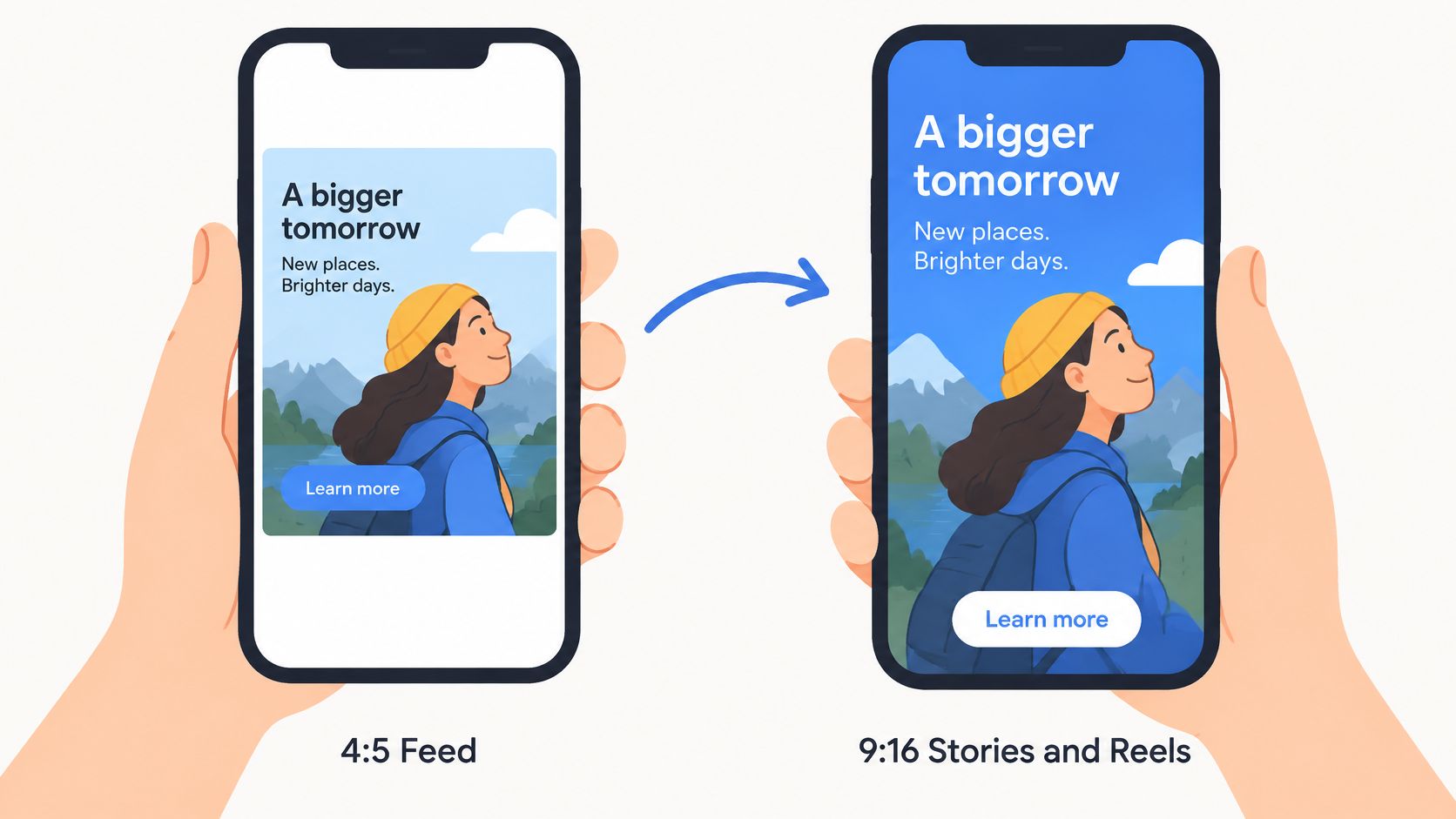
That gives you a three-master system. Use 4:5 for Feed, 1:1 for square-compatible Feed, Marketplace or carousel use, and 9:16 for Stories and Reels. Anything less is a decision to let placement rendering finish your design work for you.
The Crop Arithmetic
Say your Feed master is a 1080 × 1350 frame at 4:5. Converting that frame to 9:16 means keeping the height and narrowing the width to about 759 pixels, calculated as 1350 × 0.5625. You've discarded roughly the outer portion of the original composition on each side combined, which is exactly where product edges, hands, price badges and secondary claims often sit.
Upscaling that narrowed crop to a full 9:16 canvas doesn't recover the lost composition. It gives you a taller file built from a thinner slice of the Feed creative. That's why the vertical master has to be composed natively, with the hero product and headline placed for a tall frame from the start.
The reverse conversion fails differently. Put a native 9:16 frame into Feed and you must either add height context that doesn't exist, accept side padding, or crop top and bottom until the frame behaves like 4:5 or 1:1. Each choice changes product scale and text hierarchy, so none of them is a neutral resize.
Compose the tallest format from the source footage or source design, not from the Feed export.
Use this production order. First, compose the 9:16 master around the hero product, headline and offer. Second, derive the 4:5 and 1:1 Feed masters only where the composition still holds without cutting identifiers or squeezing margins. If it doesn't hold, reshoot, recompose or redesign. Don't let an export preset make that creative decision without anyone noticing.
Safe Zones and Crop Risk by Placement
The most expensive safe-zone failure is clipped text in a Story or Reel that's already live. The file passed on pixels, the ratio was correct, and the interface still covered the headline.
Stories and Reels overlay profile information, captions and CTA controls on the creative. Put the product, headline and offer in the central area, and reserve the top and bottom bands for nonessential background. On a 1080 × 1920 canvas, widely used guidance reserves roughly the top 250 pixels and bottom 340 pixels. Treat those reserves as widely used guidance rather than a Meta specification, and confirm them in placement preview before you lock a template.
Two Failures That Look Similar
Text clipped at the top or bottom of a Story is usually a safe-zone failure. Move the element toward the centre and re-export the same ratio. The Reels safe area guide is worth checking when your team is standardising vertical templates across Stories and Reels.
A product cut at the sides of a Feed portrait is different. That's a ratio mismatch, and moving the product a few pixels won't fix it. Re-export at the correct ratio with the composition rebuilt for that width.
- Stories and Reels: Keep logos, prices, offers and CTAs out of the upper and lower interface bands.
- Feed images: Keep essential content inside the edges so placement rendering doesn't crop or mask it.
- Square and carousel frames: Centre the product with equal side margins so scale stays consistent when a user swipes or compares placements.
- Video frames: Check the first frame and any end card separately, because a safe mid-frame doesn't prove the opening headline is safe.
Don't approve safe zones from a desktop design preview alone. Mobile preview is where profile elements, captions and CTA controls reveal what they'll obscure. Review every placement in the batch, not one representative placement and an assumption.
Run this creative review before upload. Check the logo against the top band, the price against side cropping, the offer against caption overlap, and the CTA against bottom controls. If any one fails, classify it correctly before revising. Safe-zone failures need repositioning. Ratio failures need a new master.
Keeping Carousel and Collection Ratios Consistent
Use one ratio per carousel. That's the rule, and it applies to every card, not just the first one a user sees in Feed.
For carousel ads, Meta's carousel ad guidance recommends 1:1 or 4:5 image ratios and advises keeping product-image ratios consistent across all cards to prevent automated adjustments. Meta separately recommends square 1:1 and consistent ratios for videos in a carousel.
Mixing a 1:1 card with 4:5 cards can trigger resizing and uneven product presentation. The visible result is a swipe sequence where products jump in scale, margins change from card to card, and the set reads like unrelated images forced into one unit.
Carousel Build Process
- Pick the ratio from the Feed master you're using, either 1:1 or 4:5, and don't change it midway through the set.
- Export every card at identical dimensions so product scale and padding can be compared directly.
- Name each card sequentially with the ratio in the filename, for example
Hoodie_4x5_Card01through the final card. - Preview the carousel in each placement before launch, including the first card as it appears without a swipe.
- Confirm product scale and margins match across all cards so the sequence reads as one set.
Collections need a separate warning. The Meta guidance covered here doesn't provide collection-specific dimensions, so don't assume Feed values transfer to the cover image or product set. Confirm those specs inside Ads Manager for the exact format you're building, then record them in your template rather than relying on memory.
The failure to avoid is subtle. Each card can look acceptable in isolation while the product appears at a different scale from card to card. Users notice that jump when they swipe, and buyers misread it as weak product sequencing. Lock ratio, dimensions and margins first, then test card order as a creative variable.
Video Length and File Limits by Placement
Pixel dimensions alone do not make an asset placement-ready. Duration, format, file size, and ratio tolerance can each affect whether a file is accepted or how it appears. Treat “ideal size” as a versioning system: prepare a separate master for each placement, then check its file requirements.
Meta's video placement specifications list Facebook Stories video at 1 to 120 seconds, mobile in-stream video at 5 seconds to 10 minutes, and desktop in-stream video at 5 to 15 seconds. The same guidance specifies image ads as JPG or PNG files up to 30 MB, a minimum width of 600 pixels, and a 3% aspect-ratio tolerance in relevant placements.
Duration and File Limits by Placement
| Asset | Limit | Placement | Notes |
|---|---|---|---|
| Video length | 1 to 120 seconds | Facebook Stories | Confirm the current limit in Ads Manager before a large batch |
| Video length | 5 seconds to 10 minutes | Mobile in-stream | Maximum eligibility is not a performance target |
| Video length | 5 to 15 seconds | Desktop in-stream | Prepare a separate short cut |
| Image file | JPG or PNG, up to 30 MB | Image ads | Applies across relevant placements |
| Image width | Minimum 600 pixels | Image ads | Use a larger master where required for the destination |
| Aspect-ratio tolerance | 3% | Relevant placements | Export the intended ratio rather than relying on tolerance |
| Stories video file | MP4 or MOV, up to 4 GB | Facebook Stories | Check file size as well as duration |
The Stories duration rule for production is 1 to 120 seconds. Confirm the current limit in Ads Manager before uploading a large batch, since a file that meets pixel and format requirements can still fail a placement's duration check.
Maximum duration is not a recommended edit length. A 10-minute mobile in-stream video may meet the listed limit, but that does not make a full product film suitable for the placement. Build a concise in-stream version that delivers its claim, product information, and CTA within the cut.
Make a version for each constraint set: a 9:16 short version for Stories and Reels, a 4:5 or 1:1 version for Feed, and a separate short in-stream edit. Automatic trimming can shift the timing of a proof point or offer, so place those elements deliberately in each version.
Tolerance is not a template: A 3% ratio tolerance can accommodate a near-miss export, but it is not a reason to use near-miss masters.
Before upload, check four things:
- Format: JPG or PNG for images, and MP4 or MOV for Stories video.
- Size: Keep image files at or under the stated limit, and check video file size against the placement.
- Width: Meet the placement's minimum, then confirm the master is suitable for its destination.
- Ratio: Export the intended 1:1, 4:5, or 9:16 version and verify the file properties.
Routing Mixed Ratios in Bulk with Rapid Ads
Start with naming, because naming is what keeps a mixed-ratio batch sortable after launch. Encode market, product, ratio and version in every ad and ad set name, for example US_Hoodie_4x5_v2 and US_Hoodie_9x16_v2. Feed and Reels then stay separate in reporting without a spreadsheet reconciliation.
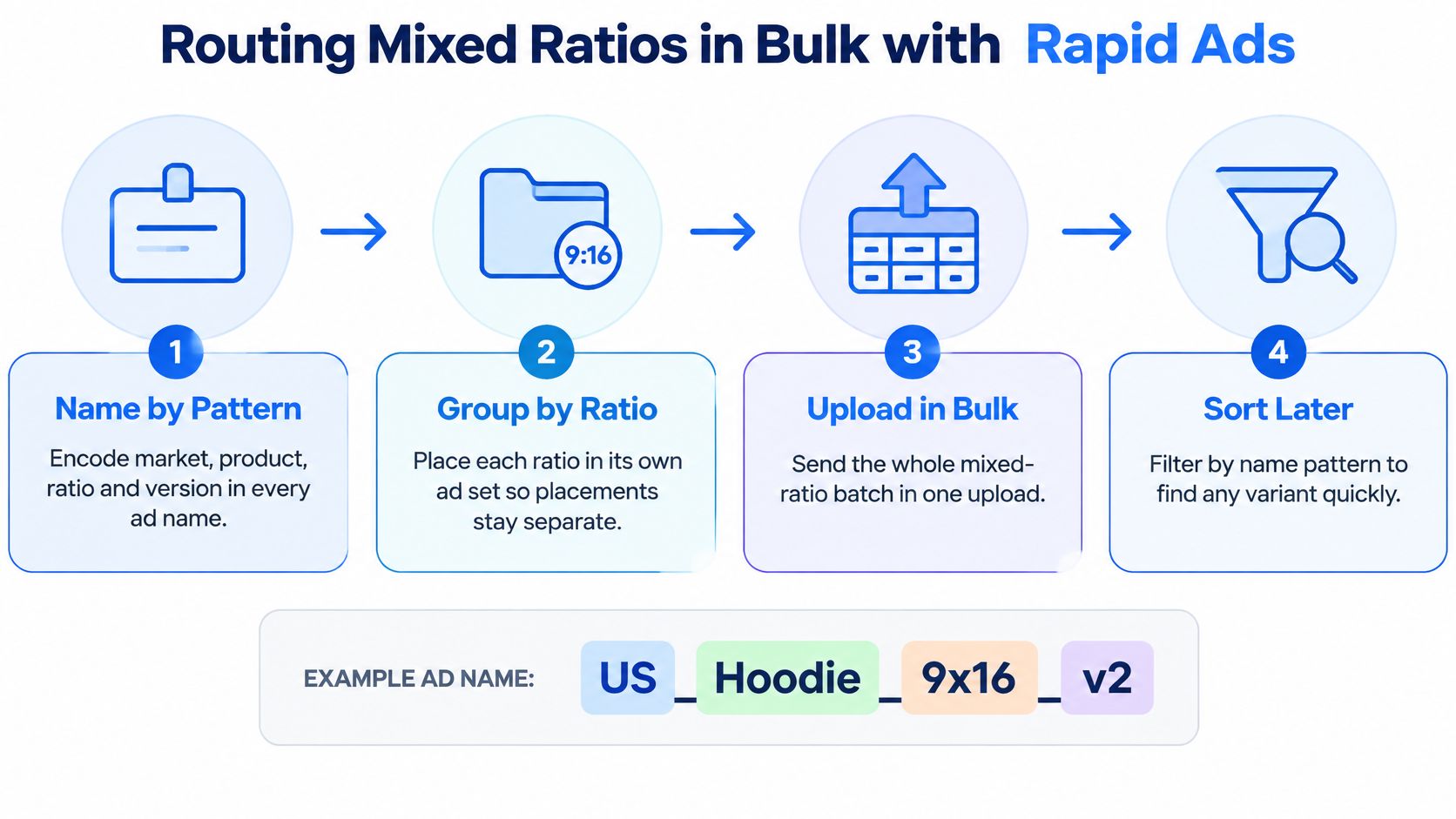
- Sort exports into three folders for 1:1, 4:5 and 9:16 before upload.
- Upload each folder to its own ad set, and keep carousel cards in a dedicated ad set with one ratio.
- Check 4:5 files against 1440 × 1800 before upload, because routing is only as reliable as your filenames and dimensions.
- Verify automated routing on the first batch by opening each ad set and checking creative dimensions. Rapid Ads can route uploads in that workflow, but the first batch still needs a manual dimensions check.
- Confirm Advantage+ creative enhancements are off in each ad set before publishing, because settings can be switched back on.
- Import copy and tracking parameters from one sheet so every ad carries the same UTM structure.
- Clone placement variants with Duplicate in Ads Manager rather than re-uploading files.
- Preview every placement and keep the ratio field visible in reporting so placement results compare cleanly.
Run a Placement Check Before You Launch
The verdict is specific. A file set is ready only when it has three masters, with 4:5 for Feed, 1:1 for square-compatible placements, and 9:16 for Stories and Reels, split into separate ad sets. No single preset covers every placement.
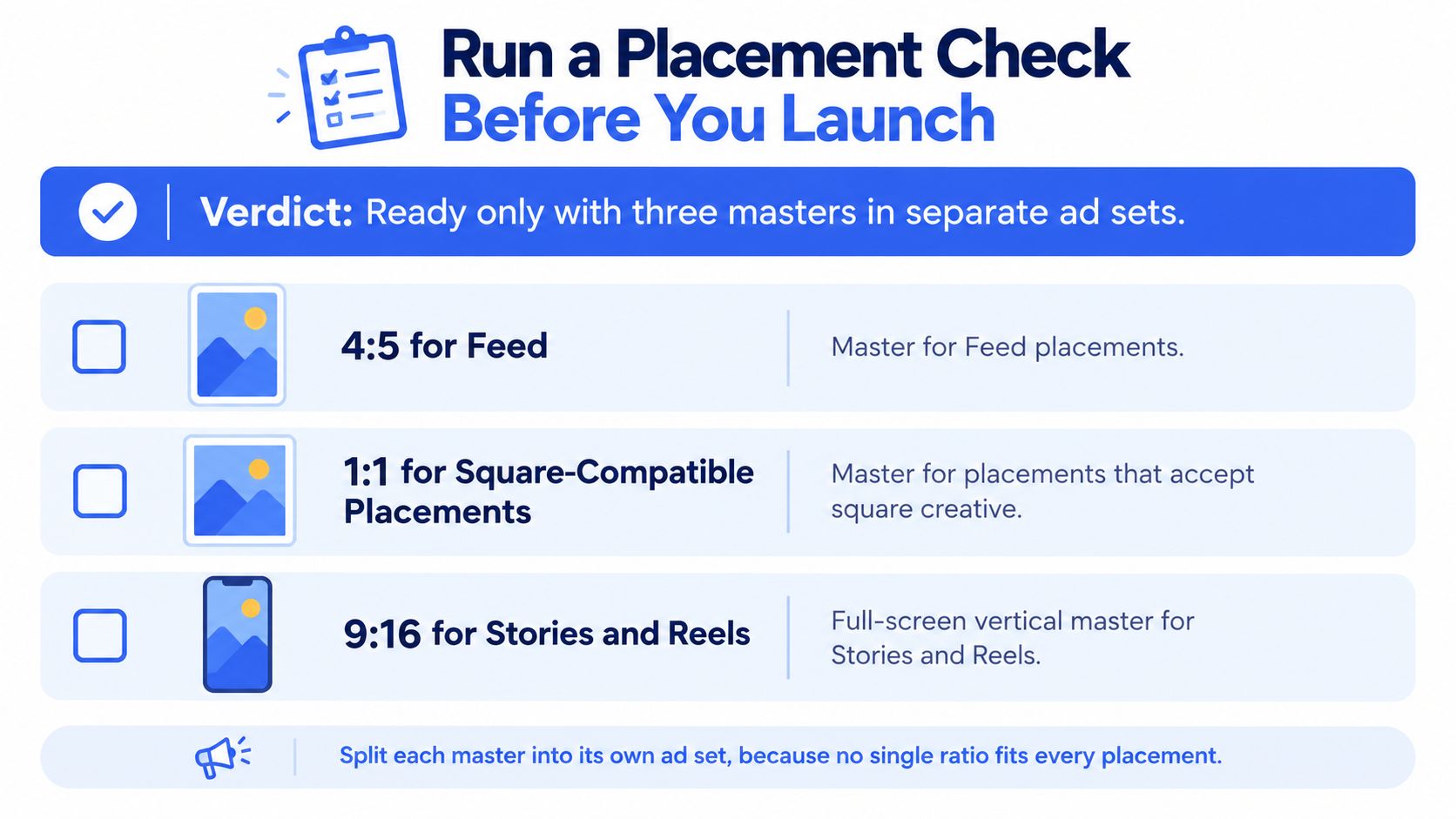
- Ratio: Exact for the placement, inside tolerance.
- Pixels: At or above the recommended master dimensions.
- Files: Correct format and size, with video inside duration limits.
- Safe zones: Stories text clear of top and bottom bands.
- Carousel: Every card on one ratio and one product scale.
- Structure: Feed and Stories in separate ad sets, ratio visible in the ad name.
- Preview: Every placement checked, as set out in this Facebook ad preview workflow.
Then test at placement level. Compare CTR and CPA by the placement breakdown in Ads Manager against the same audience and budget, so a Feed winner isn't judged on Stories traffic. If you're deciding whether that testing discipline should extend beyond Meta, compare social media advertising platforms before porting the same masters elsewhere. Hold Audience Network and collection variants out of the first test until Ads Manager confirms their specs.
If you're launching mixed 1:1, 4:5 and 9:16 batches every week, Rapid Ads can bulk-upload your creatives, group them into ratio-specific ad sets, enforce consistent naming and keep unwanted Advantage+ enhancements disabled. Set up your three masters once, route them cleanly, and spend your review time on placement previews and CPA decisions instead of repetitive uploads.



