The advice to install Facebook Pixel Helper, look for green events and start scaling skips the most important question: do the events Meta receives represent the transactions your business completed? A successful browser event isn't proof of correct revenue, server-side receipt or accurate conversion counting.
For a paid social lead, the extension is an implementation check, not a budget-release decision. Before increasing spend across markets or ad accounts, you need evidence at three levels: the browser payload, Meta's received events and your backend orders or leads.
Table of Contents
- Pixel Helper Badge States and What Each One Means
- How to Test Each Optimisation Event Step by Step
- Parameter Checks for Purchase, Lead and AddToCart
- Where Pixel Helper Stops and Events Manager Starts
- Fixing Duplicate, Missing and Mismatched Events
- Confirm the Pixel Audit Before Scaling Spend
Pixel Helper Badge States and What Each One Means
A green success state is useful, but it's also easy to overread. The event may have fired successfully while carrying the wrong transaction amount, an unintended Pixel ID or a trigger that doesn't represent a completed conversion.
Facebook Pixel Helper is now branded Meta Ads Data Advisor. According to Meta's extension guide, it's a free extension for Chrome and Edge that checks Pixel installation and browser events, exposes payload details and flags problems including missing parameters. Those details include content IDs, content types, Pixel URL location and advanced-matching data.
Read the event details, not just the badge
The badge's event count tells you there's activity to inspect. Open the panel and examine each event's name, destination and parameters before treating a successful result as a pass.
Pixel Helper signals, causes and first checks
| Signal | What It Usually Means | First Check |
|---|---|---|
| Green badge, event successful | Pixel and event fired with expected parameters | Confirm the event name and Pixel ID match Events Manager |
| Yellow warning, non-standard event name | Custom name used where a standard event exists | Compare the name against the standard event list before renaming |
| Red error, invalid Pixel ID | Wrong ID in base code or tag manager container | Check the ID against the data source in Events Manager |
| Duplicate warning | Same event fires twice on one page load | Inspect tag manager triggers and any second base code snippet |
| No Pixel detected | Ad blocker active or Pixel missing from the page | Disable the blocker and reload the page in a clean tab |
| Event shown with blank value or currency | Parameters missing or mapped to the wrong field | Compare the payload against the order total on the confirmation page |
Meta's Pixel Helper developer documentation specifically identifies invalid IDs, non-standard event names and repeated activation as diagnostic conditions. Treat colour descriptions as shorthand for the event's status, not a substitute for reading the diagnostic message.
A yellow warning also needs interpretation. A deliberate custom event isn't automatically incorrect, and a missing optional parameter such as content_ids isn't equivalent to a Purchase event without usable revenue information.
Separate detection from business validity
For no-detection results, first establish a controlled browser session with the ad blocker disabled. Don't immediately reinstall the Pixel, because adding another implementation can create a separate duplication problem.
For the wider distinction between recorded actions and meaningful business outcomes, the CartBoss guide to conversion tracking is useful context alongside technical QA.
Practical rule: A clean badge starts the audit. It doesn't finish it.
How to Test Each Optimisation Event Step by Step
Start with the event selected in the ad set's conversion configuration, not whichever event is easiest to trigger. A passing PageView tells you little about a Purchase, Lead or StartTrial implementation.
Meta's event-testing guidance recommends performing the measured action, inspecting the extension and selecting Show all events when testing across pages. It identifies incorrect names, missing or incorrect parameters and page-level JavaScript errors as causes of warnings or failures.
Run a controlled conversion journey
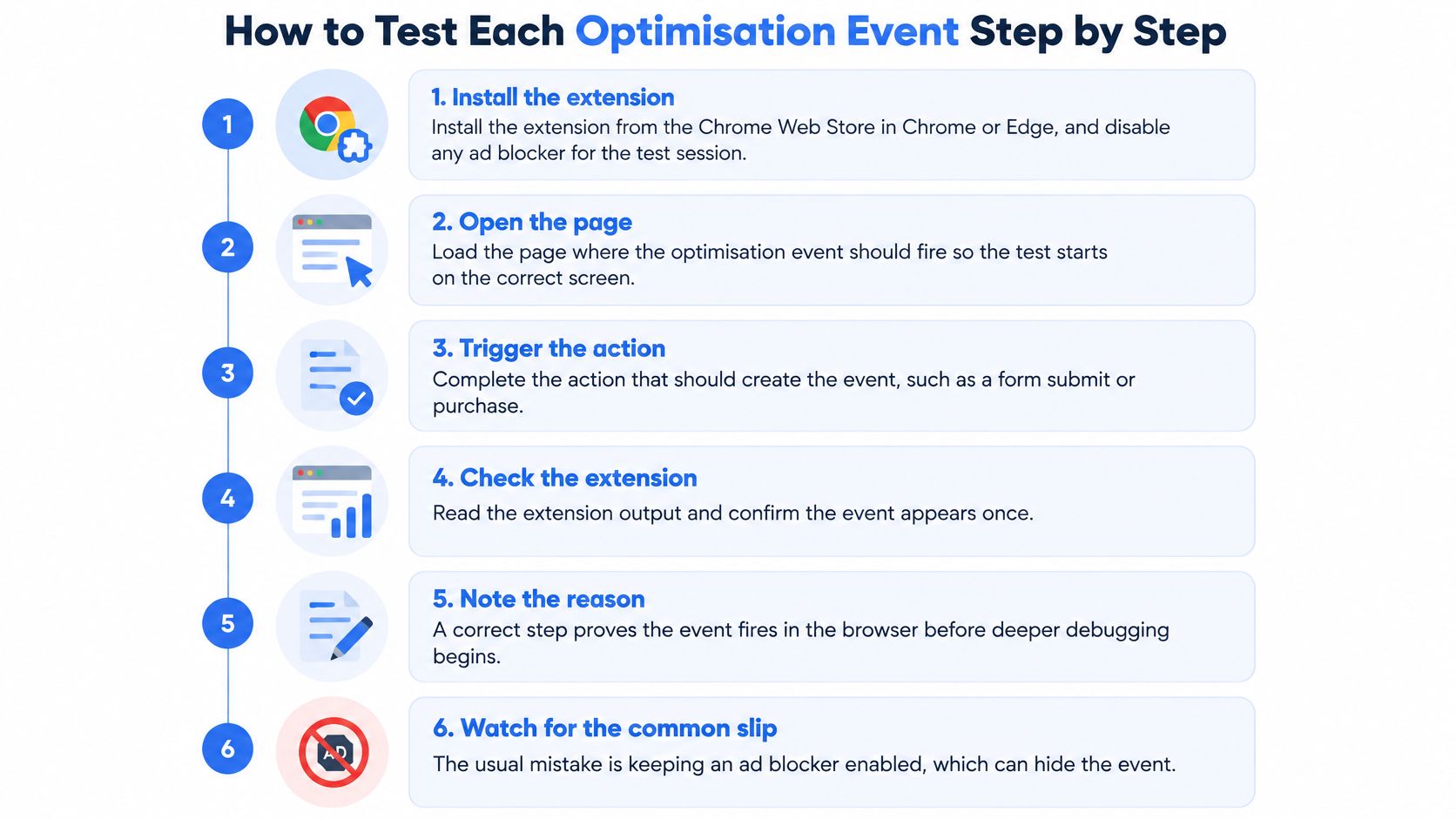
Install the extension. Install Meta Ads Data Advisor from the Chrome Web Store in Chrome or Edge, then disable ad blockers for the controlled test session. Leaving a blocker enabled can make a working implementation appear absent, so record the browser conditions before debugging code.
Open the website page in a clean tab. Load the landing page or template containing the Pixel, not the Meta Ads Manager tab. Start from the actual entry point so you test the journey a visitor would take rather than opening only the confirmation page.
Confirm the destination Pixel ID. Click the extension icon and compare the displayed ID with the intended data source in Events Manager. Don't accept a successful event sent to an old agency Pixel or another market's data source.
Select Show all events before navigating. Keep the journey visible as you move from product page to basket, checkout and confirmation. The common slip is checking only the final page and losing the context needed to identify an early or repeated trigger.
Perform the exact optimisation action. Add an item to the basket for AddToCart, submit a valid form for Lead or complete checkout for Purchase. Merely visiting the relevant page doesn't establish that the action-based trigger works.
Inspect the event row. Read the event name, parameters and success state, then compare the payload with what you did. Save the event ID and transaction reference where available, because a green row without those details is weak evidence for later reconciliation.
Repeat for every optimisation event. Test the events used by active and planned ad sets, including intermediate funnel events where they're selected for optimisation. Don't sign off an account solely because PageView and Purchase appear.
Use the workflow below as a browser-testing prompt, then retain the payload evidence separately.
Keep the test reproducible
Record the page URL, consent state, action, expected event and observed result. A developer should be able to repeat your test without guessing whether you accepted consent, used an existing basket or refreshed the confirmation page.
If the expected event never appears, use a documented Pixel implementation workflow to trace the base code, integration and event trigger. Changing several layers simultaneously makes it harder to identify which change fixed the issue.
Finish by repeating the journey on an actual mobile device. Use Events Manager and appropriate mobile debugging tools to validate receipt rather than assuming the desktop extension runs on the phone; test consent controls and mobile-specific forms as separate paths.
Parameter Checks for Purchase, Lead and AddToCart
Purchase carries the clearest commercial risk: an event can look operational while reporting the wrong revenue. Compare its payload with the completed order, not merely the product price or basket subtotal.
Meta's standard-event specification names Purchase, AddToCart, Lead, AddPaymentInfo and StartTrial, and its Purchase example supplies a numeric value and currency code using 0.00 and USD. The amount is a placeholder, not a live implementation value to copy into production.
Verify meaning as well as format
Use the following as an implementation QA contract. Not every listed field is universally mandatory for every event; some are conditional or useful for a particular commercial setup.
Required parameters and verification source by event
| Event | Parameters to Verify | Verify Against |
|---|---|---|
| Purchase | value (numeric), currency (ISO code) |
Order total on the confirmation page |
| AddToCart | value, currency, content_ids, content_type |
Product page price and catalogue ID |
| Lead | value if assigned, currency when sending monetary value |
Form success state, not the submit click |
| AddPaymentInfo | value, currency where included |
Payment step submit, not page load |
| StartTrial | value, currency, optional predicted_ltv where supported |
Trial activation confirmation and plan price |
For Purchase, establish which amount the implementation should send, including how your business handles discounts, shipping and tax. Then verify that the browser and backend use that same definition rather than different totals that happen to look plausible.
For AddToCart, inspect the actual catalogue identifier, not just whether content_ids is populated. An internal product reference and a catalogue item ID can both be valid strings while referring to different identifiers; also check whether content_type reflects the catalogue structure you're using.
For Lead, a submit click isn't sufficient evidence of success. Test a rejected form submission as well as an accepted submission, and require the conversion trigger to follow successful completion.
Check timing and market context
For AddPaymentInfo, verify the action associated with submitting payment information rather than firing merely because the payment page loaded. For StartTrial, distinguish trial activation from viewing the pricing page; if you include predicted_ltv, document how it's calculated rather than substituting it for an observed payment.
A fuller Facebook Pixel events implementation map helps keep these trigger definitions consistent across templates.
Multi-market QA needs explicit currency checks. Say a UK-managed account sends events from a EUR storefront: account ownership doesn't make GBP the correct event currency, and sending a EUR amount labelled USD makes the revenue payload wrong even when the event succeeds.
A valid parameter format doesn't establish a valid commercial value.
Where Pixel Helper Stops and Events Manager Starts
Pixel Helper can inspect observed browser activity, but it can't establish how many genuine conversions never produced an observable browser event.
This distinction matters when reviewing blocked or suppressed activity.
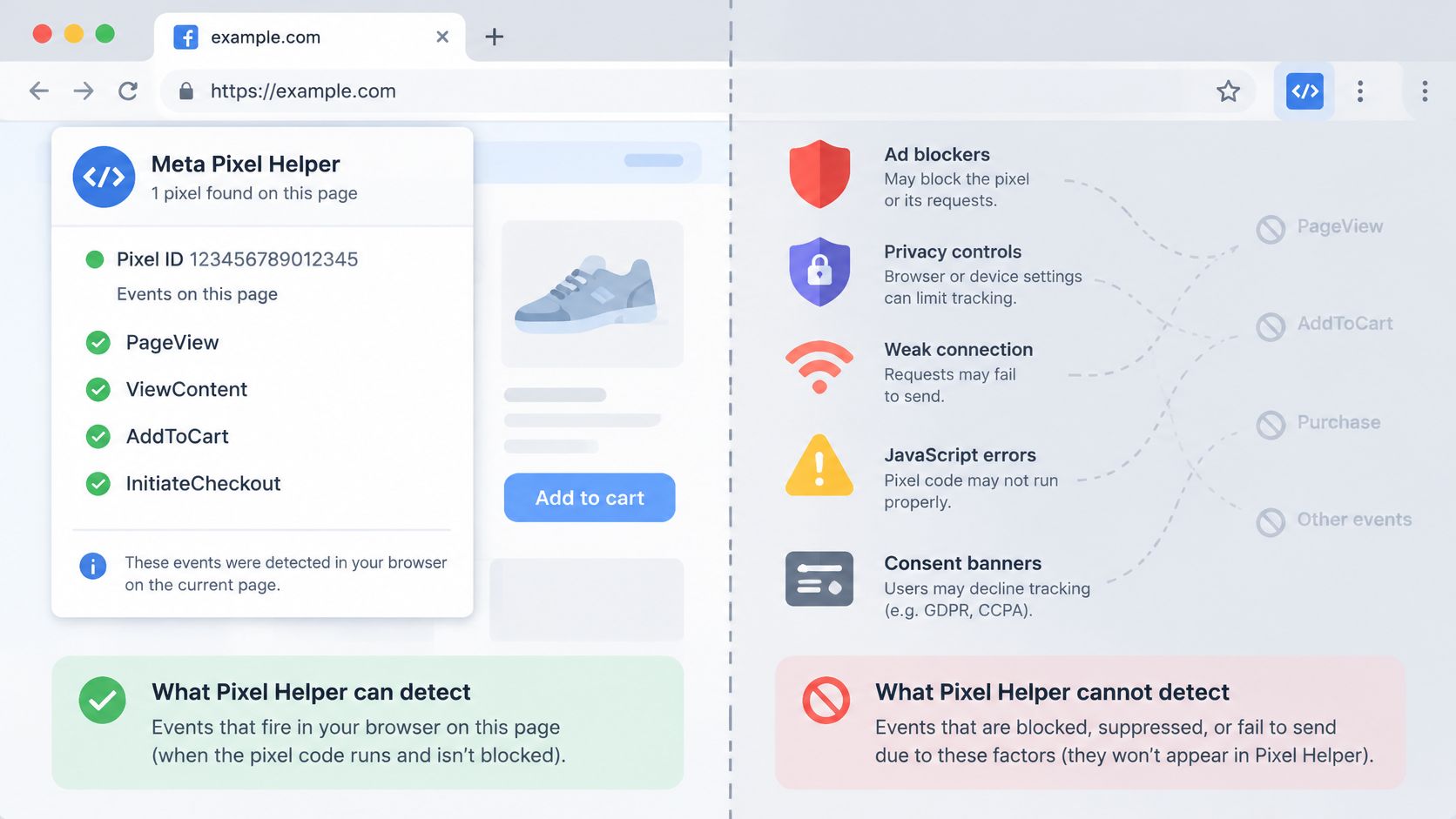
Meta's Conversions API guidance explains that server-sent data is less affected by browser loading errors, connectivity issues and ad blockers than Pixel data. That doesn't make a server feed complete, correctly configured or exempt from Meta's data-use restrictions.
Assign each question to the right tool
What each measurement tool shows and misses
| Tool | Sees | Misses | Use It For |
|---|---|---|---|
| Pixel Helper (Meta Ads Data Advisor) | Browser events on the current page, parameters, Pixel ID | Blocked or consent-suppressed events, server events | Spot-checking a template or tag change |
| Events Manager Test Events | Browser and server test events Meta receives for one data source | Historic volumes and trends | Confirming a fix reaches Meta |
| Events Manager Diagnostics | Setup problems and recommendations Meta flags | Your own order count | Finding issues in live data |
| Events Manager event health | Browser versus server volumes, freshness, deduplicated share, EMQ | Why a specific order was missed | Auditing Conversions API setups |
| Backend orders and leads | Source-of-truth transactions | Browser activity and Meta receipt | Reconciling gaps by day and market |
Open Events Manager → Data Sources, select the intended data source and ID, then open Test Events. Meta's Test Events instructions describe using that workflow to verify configured browser events and reviewing Diagnostics for setup problems; server testing also needs the relevant Conversions API test setup.
Reconcile transactions, not attributed results
Build a reconciliation file from completed backend orders or accepted leads. Compare those records with browser and server event evidence by day, event name, event_id, consent state, device and market, retaining the backend transaction reference.
Don't compare backend orders directly with the Ads Manager Results column and call the difference tracking loss. You're testing event delivery here, not whether Meta attributes every transaction to an ad.
Use this video alongside the live validation workflow.
Separate missing browser events, missing server events and events missing from both channels. Investigate JavaScript failures, connectivity problems, browser privacy controls and consent states without assuming every absence has the same cause.
A consent-suppressed event isn't automatically a broken implementation. Preserve the intended consent behaviour, and don't use server-side sending to bypass a restriction.
The budget decision should depend on whether you can explain the reconciliation gap. Adding Conversions API without deduplication can replace undercounting with double counting, so the presence of a server feed isn't itself an improvement.
Fixing Duplicate, Missing and Mismatched Events
If Purchase counts appear roughly double completed orders, investigate duplicate transmissions before treating the increase as campaign performance. Start with deduplication: generate a unique event_id for the completed conversion and send that same identifier with its browser Purchase and server Purchase.
The event name must also align across the paired events. Don't generate unrelated IDs independently in the browser and backend, or create a fresh conversion identity whenever someone reloads the confirmation page.
Diagnose the symptom before changing the integration
Meta's Conversions API best practices describe deduplication controls and Event Match Quality, a 1–10 score, with guidance to aim for at least 6.0 where possible. Inspect browser and server volumes, freshness and deduplicated-event percentage alongside that score, rather than treating event volume as evidence of successful matching.
Duplicate, missing and mismatched event symptoms
| Symptom | Likely Cause | Fix |
|---|---|---|
| Purchase count roughly double the orders | Shared event_id missing on a channel, or Purchase fires on refresh |
Generate a shared ID per conversion and guard the confirmation trigger |
| Low deduplicated share with high browser and server volumes | event_id strings differ between channels |
Align the ID format exactly across Pixel and Conversions API payloads |
| Purchase value zero or missing | value or currency absent, or wrong amount mapped |
Map the completed order total and send its ISO currency code |
| Currency differs between channels | Browser sends GBP while server sends USD | Send the same transaction currency and corresponding amount through both channels |
| EMQ below the recommended target despite high volume | Incomplete customer parameters or users without Meta accounts | Add permitted matching parameters and accept that some events remain unmatched |
| Event present server-side but missing in extension | Ad blocker, consent suppression or JavaScript error | Retest controlled browser conditions and inspect consent before editing code |
Don't enforce a single event currency merely because an ad account serves several markets. The correction is agreement between the transaction and its paired payloads, not relabelling every storefront's revenue into the account currency.
Separate matching quality from counting accuracy
A well-deduplicated event can still have weak customer matching. Conversely, adding customer information doesn't fix a duplicated Purchase trigger.
Only send customer-information parameters you're permitted to use, with the formatting and processing required for the integration. An event may remain unmatched because the information is incomplete or the customer doesn't have a Meta account; don't interpret every unmatched event as a recoverable engineering defect.
For implementation detail, use the Meta Conversions API setup guide to document ownership of IDs, server payloads and testing. Assign responsibility explicitly when a checkout partner supplies one channel and your tag manager supplies the other.
If the same Shopify checkout also has Google conversion failures, Google Ads support from Alpha Omega Digital provides an adjacent troubleshooting resource. Keep the platform investigations separate, because a successful Google tag doesn't validate Meta receipt.
Release gate: Confirm browser transmission in the extension, then confirm server receipt, matching and deduplication in Events Manager.
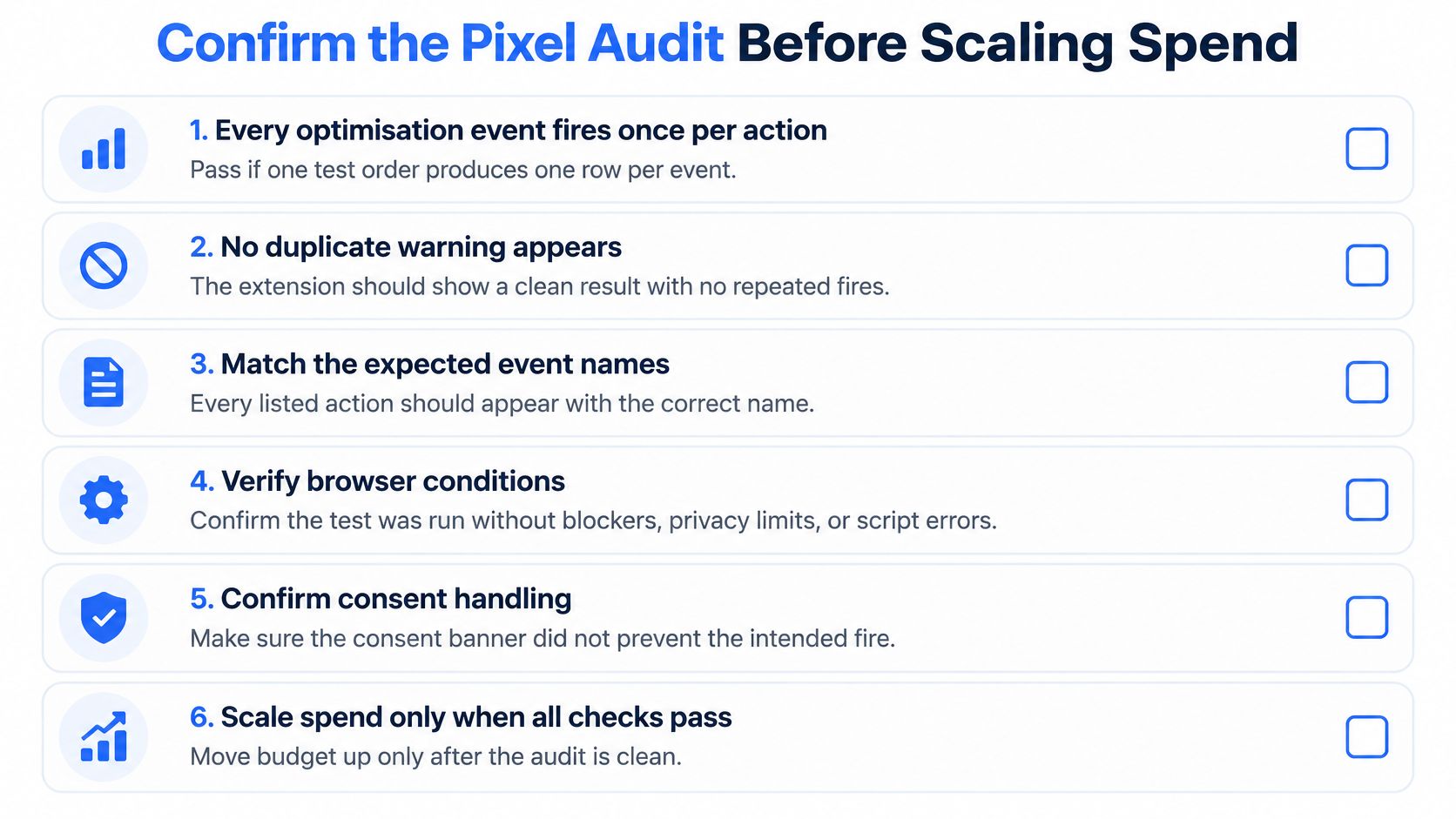
Confirm the Pixel Audit Before Scaling Spend
Use a written release gate, not a screenshot of green events. The checklist below is an operational acceptance policy, not a claim that Meta mandates a particular sample size or reconciliation period.
Name an owner for each failure and retain the evidence by market and ad account. A shared checkout bug can affect multiple launches, so approving an ad doesn't isolate the risk to that ad.
Set explicit pass criteria
Every optimisation event fires once per intended action. Pass when a controlled journey produces the expected event sequence without duplicate warnings. For a test order, require a single Purchase for that completed transaction, while allowing repeated actions such as separate basket additions.
The Pixel ID is consistent. Pass when the intended ID is identical in the base code, tag manager configuration and Events Manager data source for the relevant ad account. Record any intentional additional Pixels rather than deleting them without checking ownership.
Purchase amounts agree across devices. As an internal QA sample, complete three test orders per device category on desktop and mobile. Pass only when each event's value and currency match its confirmation-page order, with zero unexplained difference.
Browser and server identity aligns. Pass when Test Events shows the paired browser and server conversion carrying the same
event_idand event name. Retain the backend reference alongside that evidence.Deduplication and matching meet the release policy. Require an explained deduplicated share and no optimisation event below the matching target established for launch. If an event can't meet that target, document the reason and obtain an explicit exception rather than approving it.
Backend reconciliation is stable. Use at least seven days as your internal observation window, comparing eligible transactions and received conversions by day and market. Pass when the gap remains within a tolerance agreed before launch and the exclusions are documented.
Keep the browser checklist visible during the audit, but retain the server and reconciliation evidence with it.
Reopen approval after implementation changes
Repeat the audit after tag manager, theme or checkout changes. Pair measurement QA with the conversion rate audit checklist from Polish when investigating whether the journey itself prevents completion.
Rapid Ads launches a whole batch of ads to Meta Ads with one click. Before publishing that batch, validate the destination journey for each market and account, then release the batch only when the measurement evidence passes.
We built Rapid Ads to connect Facebook ad accounts and upload ad creatives efficiently, including launching a whole batch to Meta Ads with one click. Once your Pixel and Conversions API audit passes, visit Rapid Ads to prepare and publish your next batch.