About 422 px corresponds to one source's estimate that interface elements cover 22% of the Reels canvas. Other published guidance uses 672 px as the standard 35% bottom margin, while the 768 px line applies to a 40% disclaimer tier. These figures differ by source, placement, and caption length, so they do not describe one universal safe margin. For paid creative, choose the tier for each variant, then check how it renders before export and at scale.
Table of Contents
- Reels Safe Area Margins at 1080 × 1920 Pixels
- Why Meta Overlays Shift Between Placements
- Choosing the Right Safe Zone Tier for Each Case
- Where Hooks, Prices and CTAs Belong in the Frame
- How to Build a Reusable Safe Area Template
- Checking Localised and High-Volume Variants Before Upload
- Fixing Overlap Problems Found in Preview
- Confirm the Zone Before You Bulk Publish
Reels Safe Area Margins at 1080 × 1920 Pixels
A 1080 × 1920 px canvas gives a vertical 9:16 master, but the margins that protect text depend on what the asset must survive. Third-party safe zone guidance reports a standard boundary of about 14% at the top, 35% at the bottom, and 6% on each side. On this canvas, those figures equal roughly 269 px, 672 px, and 65 px per side as set out in the Muze CMO Instagram safe zone guidance. The resulting central working area is about 950 × 979 px, with less usable room near the lower-right action rail.
That is a practical starting tier, not a Meta-published pixel specification. The margin figures are guidance from third-party sources, and they should be applied according to placement and message requirements.
What each margin protects
The top band allows for navigation, status, and account information. The bottom band protects captions, account details, audio attribution, and calls to action. Side margins reduce collisions with engagement controls, particularly on the right. The same asset may encounter different overlays across Instagram Reels, Facebook Reels, devices, and app versions, so keep the most commercially important message near the center rather than directly against a guide.
A safe area guide marks where overlap risk rises. It cannot guarantee identical overlay positions on every device.
The tier table
The 14% / 35% / 6% measurements also appear as about 270 px at the top, 672 px at the bottom, and 65 px on each side in Metadata's ad creative specification guidance. Another practitioner template sets margins at approximately 250 px top, 320 px bottom, and 120 px on each side, leaving about 840 × 1350 px as described in the Instagram Reel Safe Zone production notes. The difference shows why a single template cannot cover every use case.
| Tier | Top clear | Bottom clear | Each side clear | Working area (px) |
|---|---|---|---|---|
| Standard Reels | 14% = 269 px | 35% = 672 px | 6% = 65 px | 950 × 979 |
| Disclaimer or price heavy ad | 14% = 269 px | 40% = 768 px | 6% = 65 px | 950 × 883 |
| Conservative cross placement template | 250 px | 320 px | 120 px | 840 × 1350 |
| Published bottom avoidance range, low end | Use standard top line | 18% = 346 px | Use standard side line | Varies by template |
| Published bottom avoidance range, high end | Use standard top line | 25% = 480 px | Use standard side line | Varies by template |
The bottom margin has the widest published variation. Third-party guides describe avoiding roughly the bottom 18% to 25%, while other templates leave 35% clear, and disclaimer-focused guidance extends the margin to 40% as summarized by the Keywords Everywhere Reels safe zone checker. The narrower estimates offer less room for longer captions or placement changes.
For ads with disclaimers, one third-party summary recommends keeping text, logos, and other key elements out of the bottom 40%, or 768 px, rather than using the standard 672 px boundary as explained in the Meta Ads Reels safe zone summary. Treat that as a conservative production tier, not an official Meta specification. It requires a distinct layout when legal copy, price conditions, or mandatory terms must remain readable.
Which default should you use
Use the standard tier for organic Reels and paid creative running in a single placement. Choose the disclaimer tier when legal language or price conditions need to stay legible. A conservative cross placement template may help when one master must accommodate top and side variations, but its 320 px bottom buffer is shorter than the standard 672 px margin. Keep bottom-band copy within the standard boundary, or the disclaimer boundary when legal text is present.
A localised version may also need a different tier if translated copy takes more lines. Set the margin against the longest expected text and the placements the asset will serve, rather than assuming the original-language composition will fit.
Before finalising the template, check it against the full format requirements in the Instagram video ad specs guide. Safe area margins govern composition inside the 9:16 file. They do not replace checks for aspect ratio routing, placement selection, or ad-level settings in Ads Manager.
Why Meta Overlays Shift Between Placements
Meta does not publish a fully granular, pixel-by-pixel Reels safe-zone specification. Common measurements are practitioner-derived from interface observations on real devices, so templates can differ at the edges even when they begin with the same 1080 × 1920 source as documented in CaptionSnap's Instagram Reels safe zone notes.
The main obstruction areas remain recognizable: top navigation, the right-side action rail for likes, comments, shares, and saves, and the lower caption or account-information region. Their measured footprints can change between renders. For paid creative, that variation means one 9:16 master may need different bottom margins depending on whether it is organic, disclaimer-heavy, or reused across placements.
A visual reference makes the geometry easier to brief to an editor.

The bottom estimate is the unstable one
A 22% lower-interface estimate appears in practitioner discussions, but it is unverified here and should not be treated as a published Meta specification. The 35%, or 672 px on a 1920 px-high video, is the standard-tier bottom allowance described in Metadata and Meta guidance as covered in AdNabu's Meta safe zones guide. The two figures describe different levels of caution, not competing measurements of a fixed overlay. That distinction matters: using the smaller estimate for paid creative can leave copy exposed when captions, audio labels, or a placement-specific CTA take more space.
For still-image sequences turned into vertical video, Nim's workflow for Instagram-ready videos is relevant because the composition needs to account for overlays before the images become a moving Reel. The lower margin should be chosen for the variant, not inherited automatically from the organic master.
- Caption length affects the space occupied by platform text.
- Audio labels add another element near the bottom.
- Device dimensions can alter how interface elements sit over the video.
- App version and placement can change the rendered overlay footprint.
- Paid delivery may add CTA elements that organic viewing does not show in the same way.
Crops outside full screen Reels
A 9:16 asset can also appear in Feed, Explore, or a profile grid. Centered previews may crop it to 4:5 for Feed or 3:4 for the profile grid within the 1080 × 1920 source. A centered 4:5 preview is 1080 × 1350 px, from y 285 to y 1635. A centered 3:4 preview is 1080 × 1440 px, from y 240 to y 1680.
Passing the full-screen overlay check does not guarantee that a preview crop will retain a face, product identifier, or other focal detail placed near a vertical edge. Check key information against both the overlay region and the centered crop before reusing the asset across placements.
Choosing the Right Safe Zone Tier for Each Case
Choose the tier before production. The most restrictive element in a variant sets the safe zone for the whole file. A single disclaimer moves that version to the 40% bottom band, even if its hook and product shot fit within the standard template. This prevents teams from approving a layout by campaign or placement, then finding that a price condition or legal line no longer fits.
Tier selection by production case
| Case | Safe zone tier | Reason |
|---|---|---|
| Organic Reels with no price or legal copy | Standard 14% / 35% / 6% | Keeps the defined standard margins while leaving required text out of the bottom band |
| Paid Reels with price, date, or offer | Standard, with price and date kept above 672 px from the bottom | Decision critical figures must remain clear of the caption band |
| Paid Reels with a disclaimer | Disclaimer tier, bottom 40% = 768 px | Legal copy must clear the stricter line |
| One asset reused across Instagram and Facebook Reels | Conservative template 250 / 320 / 120 px | Wider top and side buffers allow for placement variation, while bottom CTAs still need the 672 px line |
| Localised copy longer than the English master | Standard or disclaimer tier, plus per language line check | Translated headlines and disclaimers can wrap into the bottom band |
| Asset also used as 4:5 feed or 3:4 grid preview | Standard, with hero inside the center 840 × 1350 px | Crops trim the frame, so the hero must stay central |
Encode the decision in the file name
Include the tier in the master file name, for example RS_disc_v02_hookB.mp4. Media buyers can filter by tier during upload, and reviewers can identify the applicable guides without opening each file. Keep the code consistent across ad sets so it remains useful when comparing hooks, offers, or markets.
Production rule: If the file name doesn't tell the buyer which bottom line applies, the tier decision hasn't been operationalised.
Understand the conservative trade off
The conservative template changes both dimensions: its 840 × 1350 px working area is 110 px narrower and 371 px taller than the standard 950 × 979 px region. Its area is larger, at 1,134,000 px² versus 930,050 px², but that extra area is distributed vertically rather than across width. The trade-off suits a centered hero reused across placements, especially when side variation is a concern. It may constrain wide compositions, and it does not protect low text from interface overlap.
The conservative bottom buffer is 320 px, which is smaller than the standard 672 px clearance. That distinction matters for paid creative: choosing the conservative tier does not make a low CTA safer. A static hero without legal copy generally needs the conservative template only when reuse creates real top or side uncertainty. Otherwise, the standard tier preserves more width and provides the larger bottom clearance for paid elements.
Where Hooks, Prices and CTAs Belong in the Frame
Element placement should be specified as a lookup, not left to each editor's judgement on every variant. The table below uses the standard tier as its baseline and the disclaimer tier where legal copy changes the line.
| Element | Zone | Placement rule |
|---|---|---|
| Hook headline | Upper centre, below 269 px from the top | Keep clear of top navigation and account information |
| Price or offer | Centre band, above the bottom 672 px | Never place in the bottom caption band |
| Legal disclaimer | Above the bottom 768 px line | Use the disclaimer tier when present |
| Logo | Outside top 269 px and right 65 px | Avoid corners that overlap navigation and the action rail |
| Product hero | Centre 840 × 1350 px | Keep away from the right side rail |
| Face | Horizontal centre, mid frame | Keep away from the right rail and caption band |
| Primary CTA | Above the bottom 672 px line | Keep out of the caption and audio label region |
| Subtitles | Lower middle, above the bottom 672 px | Check line count per language before publishing |
Three rules cover most failures
First, place nothing decision critical in the top 269 px. That includes the opening words of a hook if losing them changes the claim. Editors often protect the product but let a small eyebrow line drift into account information.
Second, place nothing needed for reading in the 65 px side bands. This is especially important on the right, where the engagement rail competes directly with text, faces, and product edges. A logo in the upper right corner may look balanced in the design tool and still be the first element compromised in the app.
Third, place nothing mandatory inside the bottom 672 px in paid variants. Prices, dates, product identifiers, subtitles, and primary CTAs all belong above that line. Background motion and nonessential imagery can continue behind the interface because losing them doesn't change comprehension.
The disclaimer exception moves the CTA too
When a disclaimer is present, don't move only the legal text. The protected bottom line shifts from 672 px to 768 px, and the CTA moves with it if the CTA needs to be read alongside the terms. Keeping the CTA low while lifting the disclaimer creates a split layout that still puts conversion copy in the highest risk band.
This interacts directly with copy length. A shorter primary text and a tighter burned in headline are easier to keep inside the working area, which is why safe zone planning belongs alongside disciplined Facebook ad copy rather than after the copy deck is approved. If the offer needs three lines to make sense, the layout has to budget for three lines before animation begins.
A smaller product shot that stays readable beats a larger one clipped by the caption band.
Accept the scale trade off deliberately
Keeping the hero inside 950 × 979 px can cost visual scale. That's not automatically a creative loss. A product that fills more of the 1080 × 1920 canvas but loses its price or distinguishing detail under the interface gives the viewer less usable information.
Decide what must survive every render. Faces, product identifiers, prices, and claims get the protected center. Texture, environment, and secondary motion can extend toward the edges.
How to Build a Reusable Safe Area Template
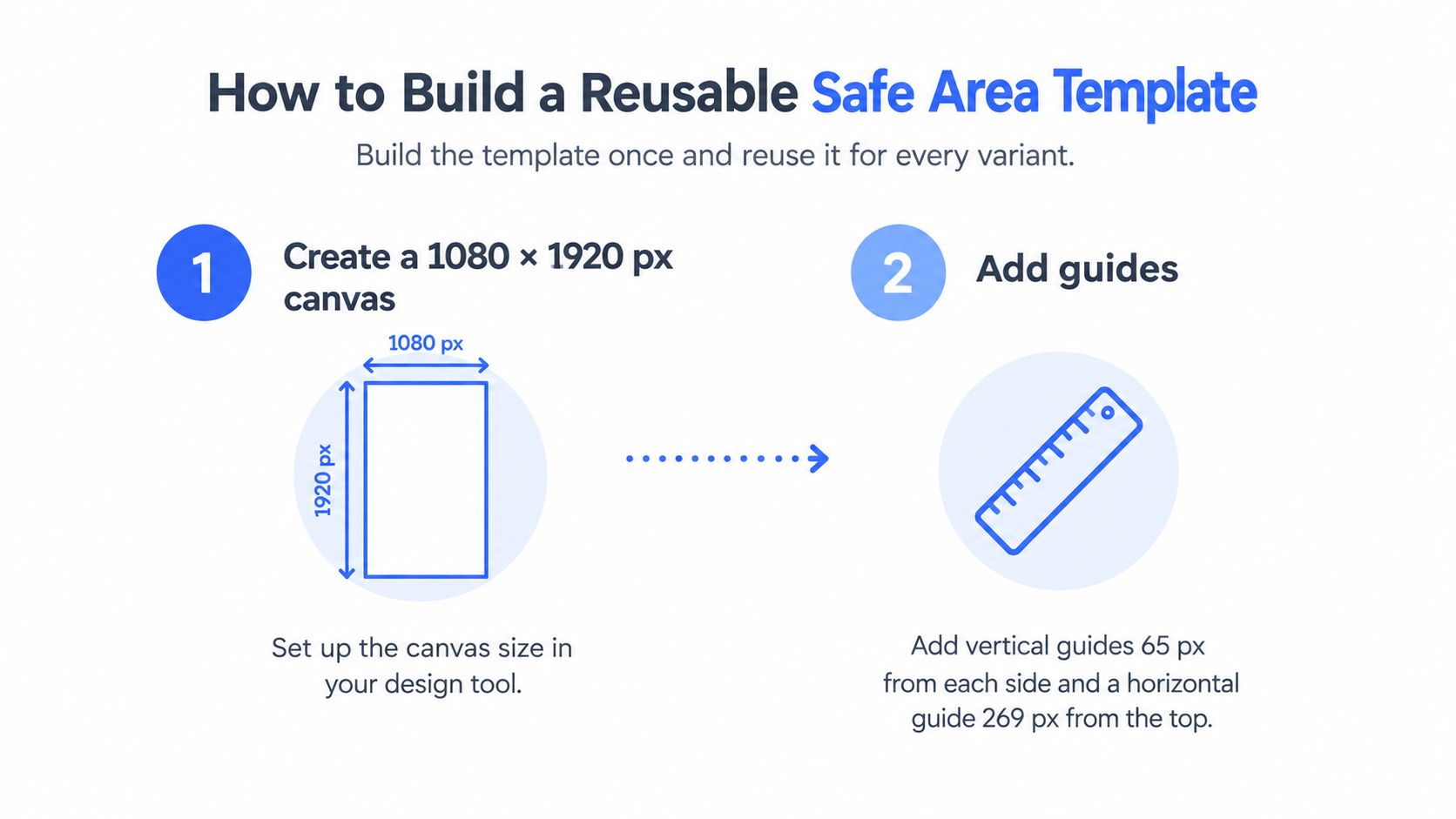
Build the template once, lock it, and make every variant inherit the same geometry. The process visual below summarises the first setup actions before the detailed steps.
Build steps
- Create the master canvas at 1080 × 1920 px in your design or editing tool.
- Add side and top guides at 65 px from each side and 269 px from the top.
- Add the standard bottom guide at 672 px from the bottom.
- Add the disclaimer guide at 768 px from the bottom on a separate layer you can hide.
- Add preview crop frames for the centered 1080 × 1350 px feed preview from y 285 to y 1635 and the centered 1080 × 1440 px grid preview from y 240 to y 1680.
- Add conservative buffers at 250 px top, 320 px bottom, and 120 px on each side as a separately labelled guide set.
- Export a locked reference image and store it with the shared campaign assets.
- Name each master by tier, placement, and version, for example RS_std_v03_hookA.mp4.
Keep the naming convention identical across ad sets. Tier codes are useful only if std, disc, and your cross placement code mean the same thing in every account, market, and reporting export.
The short walkthrough below is useful when you're showing an editor how a template layer should sit over a finished master.
Validate the template, not just the design
The conservative 250 px, 320 px, and 120 px buffers are practitioner derived rather than a fixed universal specification, and the exact overlay footprint varies by placement, device, and app version, based on the production notes cited earlier. Validate final assets in Meta's in platform safe zone preview before bulk publishing.
Do that validation at template level first. Place the guide layer over a finished master and confirm the hook, price, product detail, face, subtitles, and CTA sit inside the lines for that master's assigned tier. Then check the rendered preview because the guide can't show every caption or CTA state.
- Lock guide layers so an editor can't drag a boundary while resizing a text box.
- Label every guide set with tier and bottom clearance, not colour alone.
- Store one source template rather than copies inside individual project folders.
- Version template changes so older variants can be traced to the geometry they used.
When Meta's interface shifts, you should be editing one master template and re exporting affected variants. You shouldn't be auditing dozens of project files to discover which designer used which bottom line.
Checking Localised and High-Volume Variants Before Upload
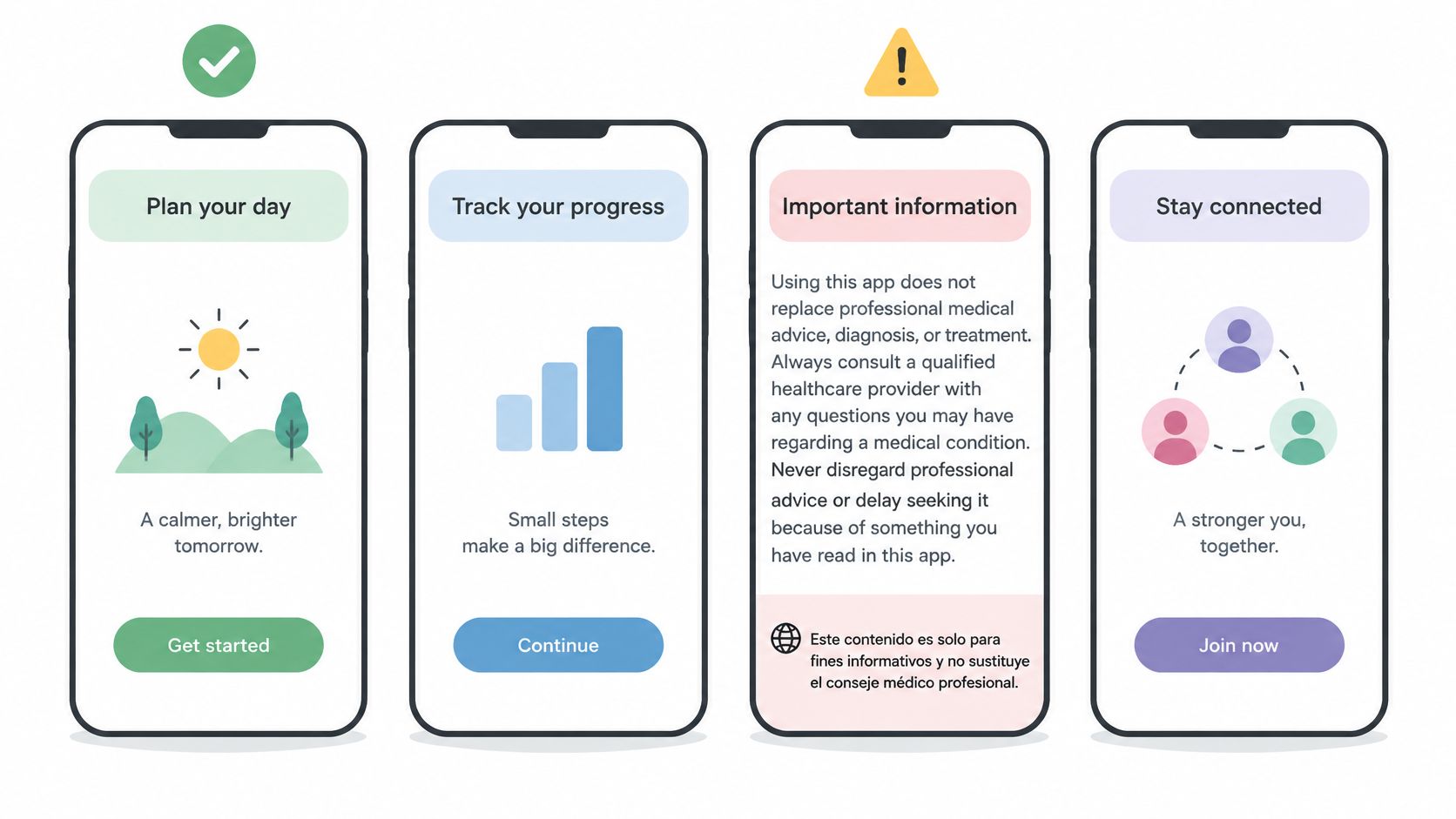
An English safe layout can fail after translation without any change to the video. A headline that fits on two lines in English may wrap into the UI zone in German, French, Arabic, or Spanish, and a translated disclaimer may need more vertical space as highlighted in Sociahive's Reels safe zone checker notes. The check therefore has to run per language, not once on the master.
The interface examples below show why variant level review matters when copy and on screen states multiply.
Use component rules instead of fixed text boxes
Hard coded coordinates break when the words change. Define the Reels safe area as percentages and component rules that each language version must satisfy. Reserve the most conservative bottom band for legal text and CTAs, keep faces and product details away from the action rail, and cap line counts for each tier.
That approach gives translators and editors a testable brief. They don't need to guess whether a longer German compound word is acceptable. If it pushes the headline beyond its permitted lines or below its baseline, the variant fails.
- Headline rule: Set a maximum line count for the assigned tier and reject overflow rather than shrinking text indefinitely.
- Subtitle rule: Keep the subtitle baseline above the bottom 672 px and check the longest line, not an average line.
- Disclaimer rule: Give legal copy the 768 px disclaimer clearance when it's present.
- Face and product rule: Keep both away from the right action rail in every crop.
- Logo rule: Keep the logo outside the top 269 px and away from the right side band.
Pre upload checklist for every language
Render each variant in every language. Confirm every text box sits inside its tier lines at final size. Check the 4:5 feed preview and 3:4 profile grid preview, then inspect the full screen paid render with the longest caption you plan to publish.
Safe area validation should happen before mass publishing, not after delivery screenshots reveal that critical copy is hidden.
For teams launching variants in batches, Rapid Ads can support the surrounding workflow by letting you bulk import copy via CSV and publish large creative sets in one batch. That makes copy length review possible in the sheet before launch. It doesn't replace the visual geometry check, because a spreadsheet can't show whether a translated subtitle baseline has crossed the caption band.
Separate the two controls. Use the CSV to catch length and naming problems early. Use rendered previews to catch line wraps, baseline drift, and crop failures.
Fixing Overlap Problems Found in Preview
Start with the symptom, then measure the element against the relevant guide. Don't fix by eye alone, because a small visual nudge can leave the copy inside the same risk band.
| Symptom | Likely cause | Fix |
|---|---|---|
| Headline hidden under the caption | Text sits inside the bottom 672 px | Lift the headline above that band or shorten the line |
| Top text clipped by profile or navigation | Text sits inside the top 269 px | Move the text below the top band |
| CTA covered by audio label or caption | CTA sits in the bottom band of a standard tier variant | Move it above 672 px, or use the disclaimer tier if legal text is present |
| Product cut at the right edge | Object extends into the 65 px side band | Recentre it within the 950 px working width |
Diagnose in the rendered placement
Play the variant in Meta's in platform preview on at least two phone sizes. Note the first frame where each element becomes covered, truncated, or hard to read. Then measure that element against the 269 px top line, the 672 px standard bottom line, and the 768 px disclaimer line where relevant.
Use a structured Facebook ad preview workflow so the reviewer checks placements in the same order every time. Consistency matters when several buyers are approving variants across accounts. A reviewer who checks only the cleanest placement will pass files that another placement breaks.
Move content or change the tier
Moving content solves most caption collisions. Lift the headline, shorten a line, reduce the number of subtitle lines, or recentre the product. These are layout fixes inside the same tier.
Changing the tier is different. If legal text is present and the CTA must remain readable with it, move the protected line to 768 px and rebuild the lower composition. If there's no disclaimer, the CTA still needs to clear 672 px. Don't switch to the conservative cross placement template to solve a bottom collision, because its 320 px bottom buffer doesn't clear the caption and audio label region.
- Move content when one element has drifted across a guide.
- Shorten copy when translation or line wrapping created the overflow.
- Change tier when the element type itself requires a stricter bottom band.
- Rebuild the master when the same failure appears across a variant family.
Test with the longest caption you'll publish. Overlap often appears only when caption text, audio information, and CTA elements occupy their largest combined footprint. A short placeholder caption can produce a false pass.
Correct the master template once and re export every affected variant. Hand fixing a large batch file by file creates inconsistent baselines and new naming errors. One template correction preserves the geometry across hooks, languages, and offers.
Confirm the Zone Before You Bulk Publish
Treat the safe area as a tiered check, not a single template. Confirm that each variant's tier code matches its use: standard for routine organic creative, a disclaimer tier when legal or price text sits near the bottom, and the conservative template for reused assets without bottom-band copy. Then check that the finished master stays inside its template guides.
Run the language checklist against the longest caption. Upload only after each variant passes its own tier. An English master passing review does not confirm that translated versions fit.
Rapid Ads' bulk CSV import helps keep naming and tier codes consistent across the batch. Review every uploaded variant in its assigned placement before publishing. A clean master can still fail when a localised line wraps or a placement overlay covers an element.
If a variant fails, move it to the next stricter tier or shorten the copy. Hold any version whose CTA, price, or disclaimer sits in a band its tier does not protect. One withheld file is a small delay; scaling an unreadable offer puts that failure into every affected impression.
When your Reels variants have passed the right safe area tier, use Rapid Ads to bulk upload them with consistent naming, correct ad set grouping, and Advantage+ enhancements kept under control. You'll spend launch time reviewing creative and performance, not rebuilding uploads one ad at a time.

