“Just search the Ad Library” is incomplete advice about how to see ads on Facebook. It helps you find competitor creatives, but it doesn't turn public ad visibility into a performance report or a complete account history. For a media buyer, the important distinction is between what you can observe, what Meta explains, and what you can only hypothesize.
Choose the route based on the question you're answering. Finding an offer, diagnosing an unexpected impression, and checking a Page's advertising pattern require different evidence.
Table of Contents
- Choose the Right Method to View Any Ad
- Search the Meta Ad Library Step by Step
- What the Ad Library Hides and How to Label Gaps
- Why a Campaign You Know Is Live Is Missing From the Ad Library
- Decode the Why Am I Seeing This Ad Panel
- Track a Page and Build a Competitor Ad Log
Choose the Right Method to View Any Ad
Ad visibility routes compared
| Method | Where to Find It | What It Shows | Main Limit |
|---|---|---|---|
| Why am I seeing this ad? | Three-dot Options menu on a Feed ad | Contributing factors for that one impression | Model-generated, not an exhaustive targeting record |
| Ad Preferences | Meta Account settings | Interest and profile categories tied to your ad experience | Changes future relevance, not the number of ads shown |
| Page Transparency | Page transparency and privacy section | Page history and whether the Page is currently running ads | No creative copy or targeting detail |
| Meta Ad Library | Ad Library search, country and keyword | Active ads by advertiser, with creative and call to action | Commercial results are mostly active ads only |
For competitor creative research, start with Meta Ad Library. You're looking for an advertiser's observable messaging, offers, formats, and destinations, not waiting for its ads to reach your personal account.
For an impression you received, use the Feed ad's menu. Meta's explanation of ad delivery describes how advertiser inputs and platform signals influence what appears, so visiting the same Page as a colleague doesn't mean you'll receive the same advertisements.
Match the tool to the decision
Ad Preferences belongs to account management, not competitor intelligence. Changing your own categories isn't a reliable way to reconstruct another advertiser's audience or force a campaign into your Feed.
Page Transparency is useful for checking identity and history signals before attaching findings to an advertiser. Treat it as context for the Page, not a record of how consistently the business has spent across accounts.
If you're inspecting your own unpublished creative, use the account-side workflow instead. A Facebook ad preview answers whether the configured ad looks right, which is different from proving that Meta delivered it.
Selection rule: Use the Ad Library to find what a competitor runs, the ad menu to diagnose an impression, and Page Transparency to contextualize the Page.
Before opening a tool, decide whether you need the creative, the reason behind a delivery, or the Page's pattern over time. That choice prevents a screenshot from becoming evidence for a question it can't answer.
Search the Meta Ad Library Step by Step
Use the market you're researching as the starting point. Meta's Ad Library guidance describes searching by country, advertiser or keyword, opening ad details, and entering the library through a specific Page.
The search sequence starts with these controls.
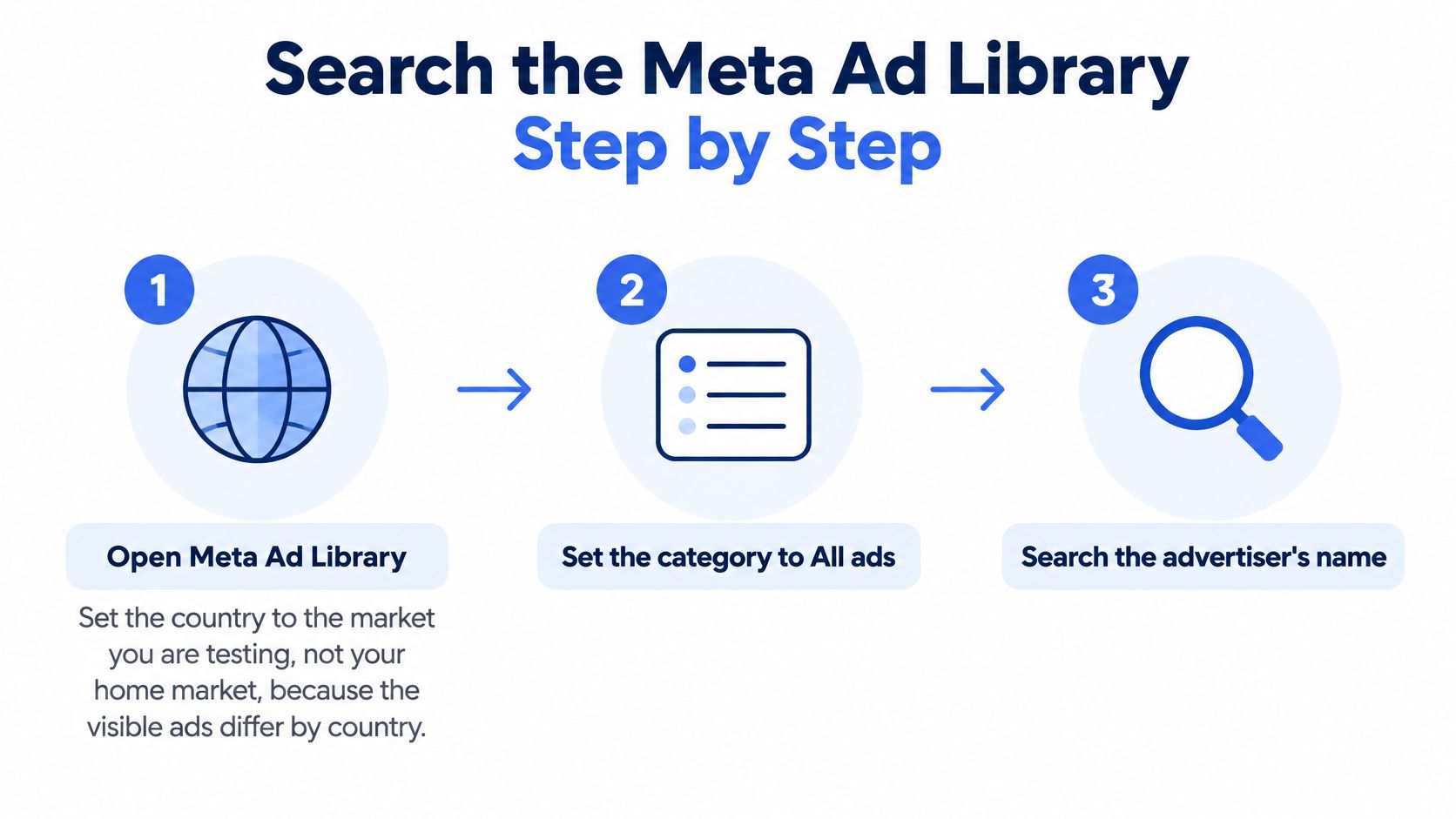
Open Meta Ad Library and select the target country. Choose the market in your research brief, not automatically the country where you're working. Common slip: interpreting a home-market search as a global advertiser audit.
Set the category to All ads for ordinary commercial research. Common slip: leaving a narrower category selected and treating the resulting coverage as complete.
Search the advertiser's Page name, then a product keyword. The keyword pass can surface relevant messages under other Page identities; a recently renamed Page also warrants a direct Page check. Common slip: relying on an exact-name search alone.
Open See ad details and capture the primary text, headline, format, call to action, and destination where available. Record the country, visible status, and your observation date alongside the creative. Common slip: saving an image without enough context to identify the offer later.
Use the Page-specific route when identity is uncertain. Open the Page, select Transparency and privacy policy, and choose Go to Ad Library. Common slip: attaching a similarly named Page's ads to the wrong company.
Apply supported status, impression-date, and disclaimer filters deliberately. Check the selected view before interpreting a result as currently delivered. Common slip: assuming every filter or transparency field applies equally to commercial and political advertising.
Keep collection reproducible
Maintain a search log containing the query, selected country, Page identity, and capture date. Deduplicate by advertiser and message, while preserving meaningful differences in the offer, hook, format, or destination.
If your agency maintains authorized regional collection infrastructure, Stella Proxies' guide on how to configure rotating proxies can help document that separate technical setup. A proxy configuration doesn't replace the library's country selector or grant access to hidden targeting fields.
For a visual walkthrough, use the demonstration alongside your own search log.
If a known competitor returns nothing, try its Page route before recording an absence. Save the failed query too, so another analyst can distinguish no result for this search from no advertising by this business.
What the Ad Library Hides and How to Label Gaps
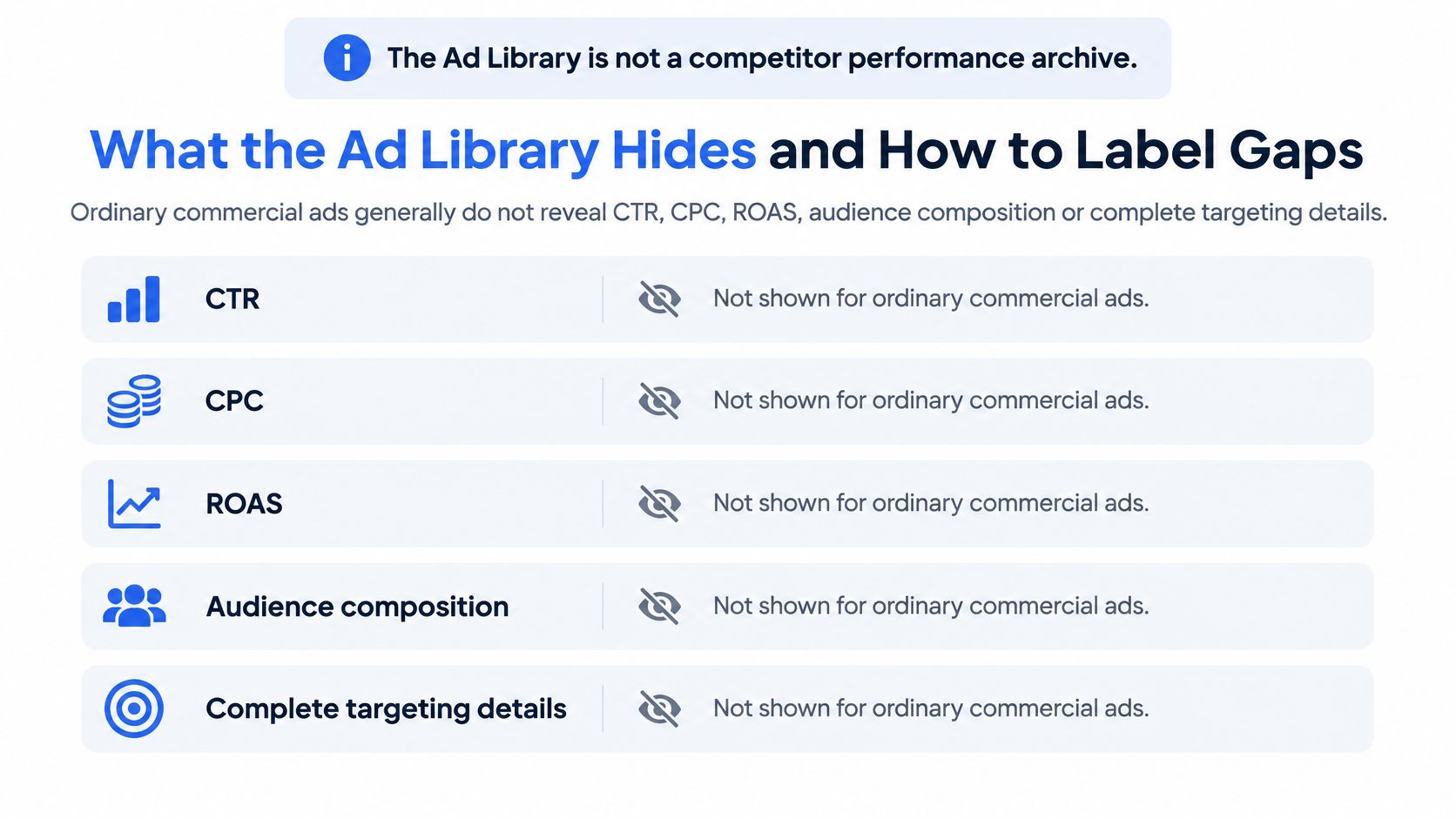
The common assumption is that the Ad Library functions as a competitor performance archive. It doesn't: GoMarble's Ad Library guide notes that ordinary commercial searches primarily expose active creatives and generally don't disclose CTR, CPC, ROAS, audience composition, or complete targeting details.
Ad Library visibility by ad type
| Ad Type | Currently Active | Historical Access | Spend and Targeting Detail |
|---|---|---|---|
| Ordinary commercial ad | Yes | Limited, primarily active creatives rather than a complete archive | No CTR, CPC, ROAS, audience composition or full targeting |
| Political or issue ad | Yes | Date-range access where the view supports it | Funding disclaimers, spend ranges and demographic reach |
| Inactive commercial ad | Rarely, not in standard search | No standard historical archive | No performance data |
The distinction matters when an analyst labels an ad a winner. An observable creative is evidence that the advertiser made that message available for delivery, not evidence that it achieved an acceptable acquisition cost.
Use this checklist to keep missing fields visible in the analysis.
Separate observation from interpretation
Longevity is a proxy, not validated performance evidence. An advertiser might retain a creative because it works, but public visibility doesn't reveal its spend allocation or commercial return.
Likewise, a short run could reflect budget constraints, seasonal timing, policy issues, or deliberate testing. Calling it a failed ad adds a conclusion the public record doesn't support.
- Confirm coverage. Record the selected country and Page before comparing advertisers.
- Inspect search gaps. Searchable advertiser names and ad text don't necessarily capture words embedded only in images.
- Preserve changes. Log first-seen dates, creative revisions, platform, format, and landing-page variations.
- Label interpretation. Keep confirmed observations separate from hypotheses about testing strategy or performance.
A creative that remains visible is worth investigating. It isn't automatically worth copying.
A defensible note reads: Observation: the advertiser retained the same offer while changing the opening hook. Hypothesis: the team may be testing attention mechanisms around a stable proposition.
That distinction is especially important for agencies and ecommerce teams comparing major markets. Without consistent coverage labels, a team can mistake an incomplete search for a strategic difference and brief its creative department against an imaginary competitor advantage.
Why a Campaign You Know Is Live Is Missing From the Ad Library
A launch was published this morning, but a midday search returns nothing. First establish what “live” means: a published campaign, an approved ad, and an ad delivering aren't interchangeable states.
Meta says most ads are reviewed within 24 hours, although some take longer. That is an ad-review window, not a documented Ad Library indexing guarantee, so don't use it to promise when a public result will appear.
Check delivery before diagnosing visibility
Verify the market selection. Match the library country to the campaign's intended market. Record the setting rather than relying on memory.
Schedule a later recheck before drawing a conclusion. Treat the interval as an internal research procedure, not a Meta service-level commitment.
Look for material edits. Changes to creative, targeting, optimization, or landing-page details can trigger another review. An approved version doesn't establish the status of its replacement.
In your own account, inspect the Delivery column at the relevant campaign, ad set, and ad levels. Look for pending-review, rejected, or limited states instead of treating the campaign toggle as proof of delivery.
Finalize the launch package before bulk publishing. Confirm copy, URLs, tracking parameters, placements, and creative settings, then submit early enough to accommodate review.
For competitor accounts, you can't perform the Delivery check. Don't fill that access gap with confidence: log what was searchable and leave the cause unresolved.
Absence protocol: Record the date, country, query, and Page checked. Mark the cause as unknown unless you have account-side evidence.
For high-volume launches, separate upload completion, review status, and delivery confirmation in the operations checklist. Bulk tools reduce configuration work, but they don't remove policy review or guarantee simultaneous activation.
The useful finding is a bounded one: the creative wasn't visible through a specified route at the time checked. “The competitor paused spend” requires evidence that a public search alone doesn't provide.
Decode the Why Am I Seeing This Ad Panel
Suppose a competitor's enterprise offer appears in an account you use mainly for consumer shopping. The mismatch is worth inspecting, but it doesn't establish that the advertiser chose an unexpectedly broad audience.
Meta's ad-explanation documentation describes contributing factors such as activity on Meta services, advertiser interactions, and activity shared from websites or apps. The explanation is model-generated, so treat it as a diagnostic signal rather than a complete targeting audit.
Use the menu attached to the actual impression.
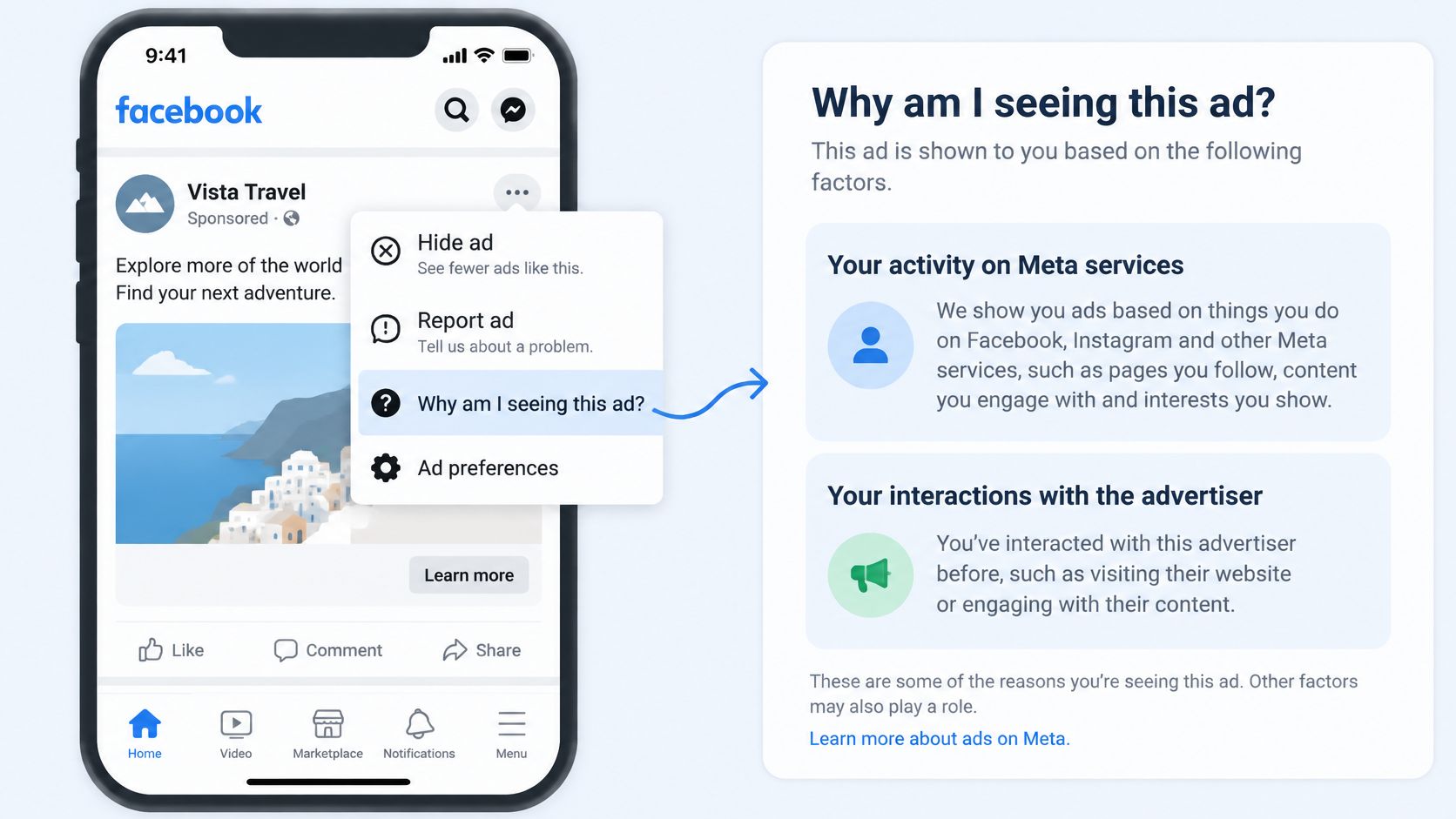
- Open the ad's three-dot Options menu.
- Select Why am I seeing this ad?
- Capture the context: advertiser, displayed rationale, date, placement, and any available Next details.
- Repeat across separate impressions and days, preserving the wording rather than paraphrasing everything as interest targeting.
Factors the panel can show and what each implies
| Factor Shown | What It Suggests | What to Log |
|---|---|---|
| Activity on Meta technologies | Platform activity may have contributed, not proof of a frequency rule | Date, placement and observed impression count |
| Interactions with the advertiser | Prior advertiser engagement may have contributed | Whether you visited the Page or clicked |
| Advertiser-selected audience match | An audience match, without necessarily identifying a list, LAL or interest configuration | The audience or interest actually named |
| Demographic or interest match | Listed characteristics contributed to the explanation | The demographic or interest listed |
| Activity from websites or apps | Shared off-Meta activity may have contributed, without proving a particular pixel setup | The site or app named, where shown |
Avoid reverse-engineering an ad set from a reason
The panel isn't an export of Ads Manager settings. A named interest doesn't establish that the advertiser used a standalone interest ad set, and an advertiser interaction doesn't independently prove a retargeting campaign.
Use a Meta ads targeting framework to organize possible explanations, then keep those possibilities separate from the captured evidence. The same discipline applies when your own creative reaches a segment you didn't expect.
Ad Preferences lets you review interests, profile information, and activity-related controls. Those edits affect future relevance, not the total number of advertisements shown.
Write the finding as: Hypothesis: prior advertiser interaction may have contributed to delivery. Add the actual impression count from your log and preserve any impressions with different explanations, rather than reporting only the examples that support your theory.
Track a Page and Build a Competitor Ad Log
Open the advertiser's Page, select Transparency and privacy policy, and follow Go to Ad Library. Use the Page panel to check identity, history, and current advertising status; collect creative evidence from the library rather than expecting copy or targeting details inside Page Transparency.
Build a shared log instead of separate swipe folders for each buyer. A screenshot can inspire a hook, but a structured record lets an agency compare observations without losing market, timing, or advertiser identity.
Capture fields that support a decision
- Identity and coverage: advertiser, Page, country, observation date, and visible active status.
- Creative output: newly observed creatives per review, message family, hook, format, and call to action.
- Destination: landing page, offer, and meaningful page variations.
- Timeline: first-seen and last-seen dates in your own collection, not assumed campaign start and end dates.
- Evidence quality: confirmed observation, hypothesis, and any captured delivery-panel rationale.
For format labels, Meta's placement guidance maps 1:1 square assets to common Feed inventory, 4:5 vertical to mobile Feed, 9:16 to Stories and Reels, and 16:9 to in-stream video and Video Feeds. Record the asset shape separately from placement so you don't mistake a crop for proof of where an ad delivered.
Deduplicate by advertiser and message, but retain meaningful hook, offer, and destination differences. For a broader commercial audit, Evoproxy's resource on collecting competitor pricing and creatives offers context for combining creative observations with offer monitoring.
Turn patterns into testable briefs
Review the log weekly. Steady output with rotating hooks supports a hypothesis of systematic testing; a concentrated burst around a known launch supports a launch-related explanation; silence may indicate another Page identity rather than inactivity.
Keep those classifications provisional. If you're designing repeatable collection, assess Facebook Ad Library API access before promising clients an automated commercial-ad archive.
Take the strongest observed angles into original creative briefs, then judge them using your own CPA and ROAS. Rapid Ads is a software-as-a-service platform that connects Facebook ad accounts and uploads creatives efficiently; 100 ads can go live in under 10 minutes, subject to Meta's approval and delivery requirements. Use consistent market, angle, hook, and format naming across the batch.
Before publishing controlled tests, Meta's Advanced preview guidance recommends inspecting the Placements and Advantage+ creative tabs for enhancements. Confirm what may be delivered, not just the uploaded thumbnail.
Start this week with one competitor and a 14-day observation log, then review it on day 14. Treat that as a practical pilot schedule, not a benchmark: the deliverable is a set of evidenced observations and clearly labeled test hypotheses.
Rapid Ads connects your Facebook ad accounts and lets you upload a whole creative batch to Meta Ads with one click. Once your competitor log has produced testable angles, visit Rapid Ads to turn those briefs into a consistently named launch batch, while keeping performance validation inside your own account.
