You've just onboarded a media buyer, handed over a client's ad account, and moved on to campaign setup. Then the buyer asks for billing access, the client adds them as a business admin, and nobody can explain why the agency still can't see the account. That's how a simple handover becomes a permissions mess.
The safe way to share Facebook ad account access isn't “add a person and choose a role.” Meta access is layered across the Business Portfolio, the specific ad account, the person or partner requesting access, and the tasks assigned to them. Get one layer wrong and you can create either a blocked workflow or an unnecessarily large security risk.
Table of Contents
- The Three Layers of Meta Ad Account Access
- Ad Account Roles and What Each One Can Actually Do
- Inviting a Person and Assigning the Ad Account in Business Suite
- Individual Access vs Business Portfolio Partner Access
- Pre-Invite Checklist for Agencies and In-House Teams
- Why Access Requests Fail and How to Fix Them
- Quarterly Access Review and Clean Offboarding
The Three Layers of Meta Ad Account Access
At 6:47am, a media buyer at an agency logs into a client's ad account using her own Facebook profile. That part is correct. She shouldn't be using the client's password. The problem starts when the client says, “I added you to the business,” but the buyer still can't see the account, the Page, the pixel, or the payment settings she needs.
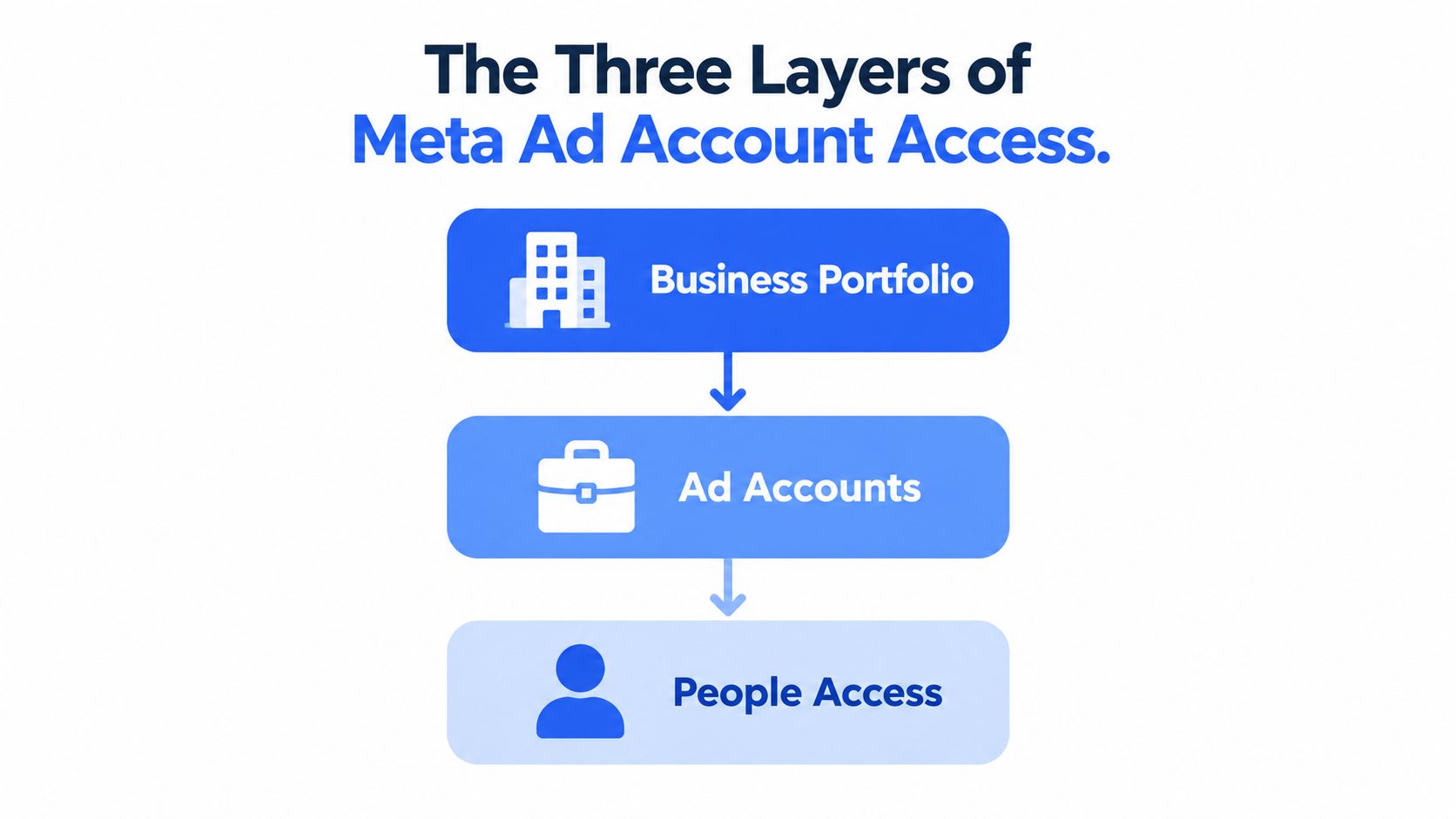
Meta access has three distinct layers:
- Business Portfolio, the outer business container that owns or manages assets.
- Asset assignment, which determines whether a person or partner can access the specific ad account.
- Ad-account permissions, which define what that person can do inside the account.
Meta's older ad-account model is role-based. It identifies Admin, Advertiser, and Analyst permissions, with different capabilities for campaign management, billing, reporting, and user administration. The current Business Portfolio structure adds another level, separating business-level authority from asset-level access and task permissions. You can review Meta's foundational role model in its ad account access documentation.
Why the layers matter
A person can belong to a Business Portfolio without having access to the ad account inside it. A partner can receive access to an ad account while the agency's individual employees still need separate internal assignments. Someone can also have campaign permissions without having control over billing or other users.
That means revoking one layer doesn't necessarily clean up the others. Removing an employee from your agency's portfolio won't automatically remove a partner relationship from a client's portfolio. Removing an ad-account role won't necessarily clear access inherited through another business structure. Review people, partners, and assigned assets separately.
Practical rule: Give access to a named person or verified business partner, never to a shared Facebook login.
For agencies, this is also an accountability issue. A named user creates a clear record of who can launch, edit, report on, or administer campaigns. Tools such as MANDATE invisible browser verification can add another control layer around access-sensitive workflows, but they don't replace correct Meta permissions.
Use the architecture as your diagnostic map. If someone can enter the Business Portfolio but can't see the ad account, inspect asset assignment. If they can see the account but can't change billing, inspect the ad-account role. If an agency can't request access across client businesses, inspect partner status, ownership, and verification.
Ad Account Roles and What Each One Can Actually Do
Most handovers fail because someone chooses a role based on the title rather than the task. “The buyer is senior, so make them Admin” is not an access policy. It's a way to give campaign operators control over payment methods and user permissions they don't need.
Meta's three ad-account roles are materially different. The matrix below reflects the capabilities documented by Meta in its ad account permissions reference.
Ad Account Role Capability Matrix
| Capability | Admin | Advertiser | Analyst |
|---|---|---|---|
| View existing ads | Yes | Yes | Yes |
| View performance reports | Yes | Yes | Yes |
| Create and edit ads | Yes | Yes | No |
| Create and manage campaigns | Yes | Yes | No |
| Use the existing payment method | Yes | Yes | No |
| Change the payment method | Yes | No | No |
| Add or remove users | Yes | No | No |
| Manage permissions | Yes | No | No |
Admin combines operational, financial, and governance control. Give it to the account owner, a trusted senior operator, or the person responsible for account administration. It's inappropriate for a standard media buyer whose job is to build campaigns, adjust budgets, manage creative, and optimise delivery.
Advertiser is the normal choice for a media buyer, freelancer, or agency operator. It allows campaign creation and editing while keeping payment-method changes and user management out of reach. The user can work with the account's existing payment method without being able to replace it.
Analyst is for reporting stakeholders. Use it for a client executive, measurement specialist, finance reviewer, or reporting contractor who needs to inspect ads and performance but must not create or edit campaigns.
One correction matters here. An Analyst is view-only at the ad-account level. They can't create ads, publish campaigns, or edit budgets. If someone needs to build or optimise campaigns, Analyst access is insufficient.
The portfolio-level trap
These roles apply at the ad-account level. Business Portfolio access is separate. A person with broad portfolio control may have authority over assets and settings beyond the role you intended to assign at the ad-account layer. That's why an agency should avoid granting full portfolio control merely because a buyer needs Advertiser access to one account.
For handovers, write the required task beside the permission before inviting anyone:
- Campaign execution and optimisation, Advertiser.
- Reporting and performance review, Analyst.
- Billing, permissions, and account governance, Admin.
If the task doesn't require billing or user management, Admin is the wrong role.
Inviting a Person and Assigning the Ad Account in Business Suite
For an in-house employee or a single freelancer, use an individual invitation. The important detail is that adding someone to the Business Portfolio isn't enough. You must attach the specific ad account and select the asset-level permission they need.
The exact workflow
- Open business.facebook.com and select the correct Business Portfolio.
- Open Settings, then go to People.
- Select Add and enter the person's email address.
- Choose the person's business-level access carefully. Don't enable broad control unless their job requires it.
- Open the asset-assignment step and select the relevant ad account.
- Choose the ad-account role, usually Advertiser for a media buyer or Analyst for reporting.
- Review the assignment and send the invitation.
- Ask the invitee to accept using their own Facebook account, then confirm that the ad account appears in Ads Manager.
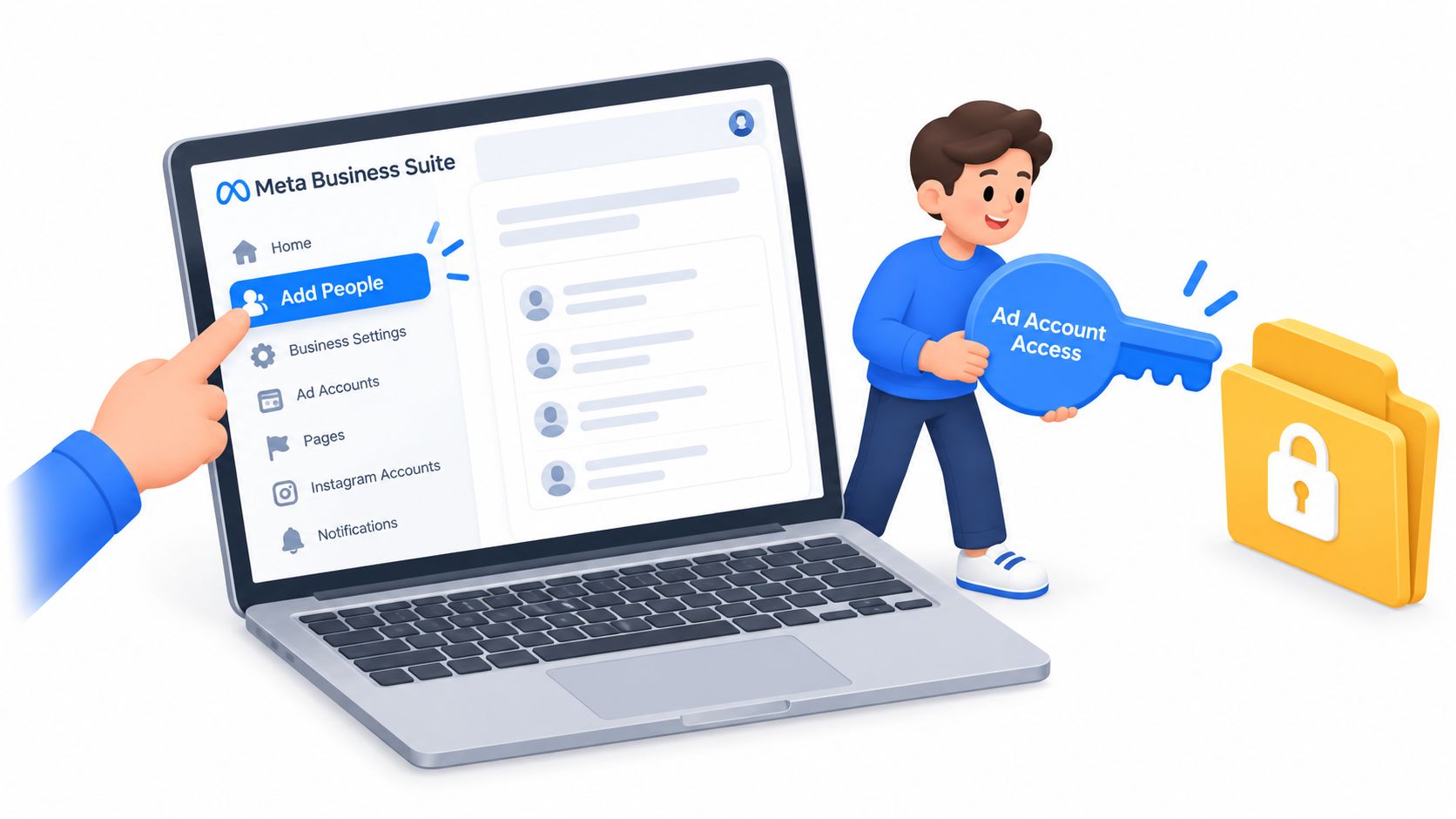
The two screens that cause the most confusion are the asset assignment control and the role selector. A person can be present in the business but have no usable ad-account access if the account wasn't assigned. Likewise, a general employee-style business invitation doesn't automatically give the person campaign permissions.
Meta's newer workflow separates Business Portfolio access from access to assets such as Pages, Instagram accounts, and ad accounts. Its documentation explains that administrators should assign the required asset and task permissions through the portfolio settings rather than assuming portfolio membership grants access automatically. The Meta Business Suite workflow for assigning people and assets is the relevant reference point.
Keep the tool layer separate
Once access is correct, campaign production can happen in Ads Manager or in a workflow tool. An AI agent publishing tool may help with publishing operations, but it shouldn't be used as a reason to grant a contractor broader Meta permissions than their work requires.
This is individual access, not partner access. The person receives access through their own profile. An agency-wide relationship needs a different workflow.
Individual Access vs Business Portfolio Partner Access
Individual access works when one named person needs controlled access to one account. Partner access works when an agency needs to manage client assets through its own Business Portfolio and allocate those assets internally.
The distinction becomes important as soon as staff change. With individual access, the client invites specific agency employees. When that employee leaves, the client must remove that person and invite a replacement. With partner access, the client grants the agency's Business Portfolio access, and the agency manages its own team assignments internally.
Individual Access vs Partner Access
| Dimension | Individual Access | Business Portfolio Partner Access |
|---|---|---|
| Best fit | In-house staff, a freelancer, or a tightly scoped collaborator | Agencies and businesses managing several client or subsidiary accounts |
| Identity | A named Facebook user | A business partner portfolio |
| Internal staff changes | The client may need to update individual invitations | The agency can manage its own people internally |
| Ownership | The client can retain the ad account and invite the user | The client can retain ownership while sharing access with the partner |
| Setup | Fast and direct | More structured, with business and asset permissions |
| Main risk | Access becomes tied to individual invitations | Incorrect partner permissions can expose too many assets |
| Verification | Usually less operational friction | Cross-company access may depend on agency verification and ownership rules |
For a client-owned account, the safer agency model is usually: client retains ownership, agency receives partner access, agency assigns internal users. The client shouldn't move ownership just because an agency is managing campaigns.
Meta's current rules create a specific agency trap. Only agencies completing agency verification can access ad accounts belonging to other businesses, while an unverified portfolio may be restricted to accounts owned by the same company. That means a client can accept a request and the agency can still lack the necessary asset-level permission. Meta documents these cross-business and verification constraints in its agency access guidance.
Partner access isn't a universal substitute for individual access. The client, agency portfolio, and employee assignment can each limit what the next layer can do.
Use individual access for a low-turnover collaboration where one person needs one account. Use partner access when an agency has multiple operators, manages multiple clients, or needs to replace staff without asking every client to rebuild access.
Pre-Invite Checklist for Agencies and In-House Teams
Don't start the invitation until ownership, security, and scope are written down. The fastest onboarding process is the one that doesn't require a second round of permissions, billing corrections, and access recovery.
Confirm the identity and security baseline
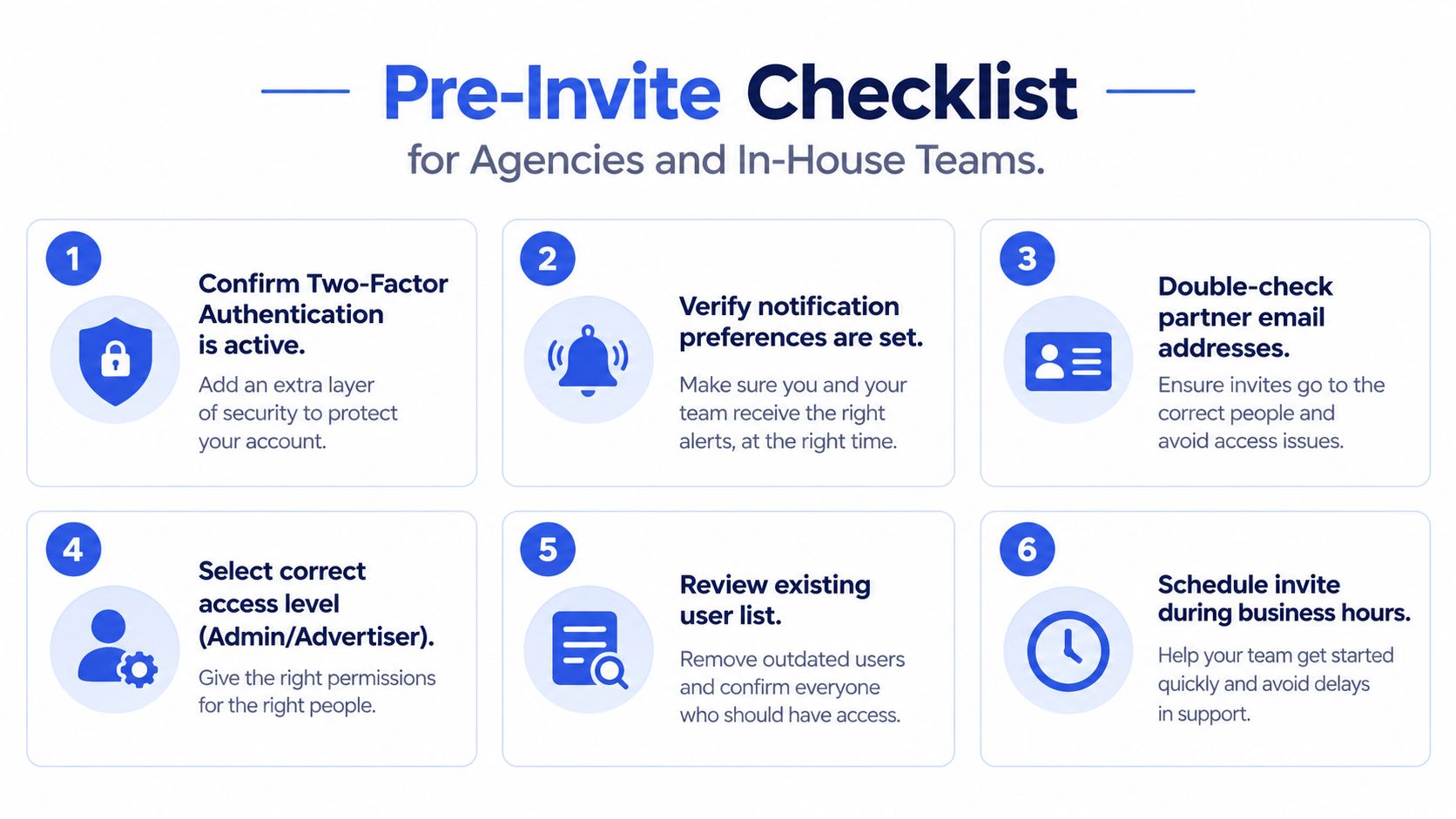
Require two-factor authentication for every person who will touch the account. Each user should work from their own Facebook profile, not a shared mailbox, generic agency login, or contractor alias that could disappear. The email address used for the invitation should identify the person and match the business relationship you're documenting.
Before the invite, confirm:
- Two-factor authentication: Every user has it enabled before receiving operational access.
- Named ownership: The client or operating company remains the documented owner of the ad account.
- Business structure: You know whether the account belongs to the client's Business Portfolio, the agency's portfolio, or another entity.
- Partner details: The agency can provide its correct Business Portfolio identity when partner access is required.
Separate campaign work from financial control
Decide who owns payment administration before the buyer receives access. The person changing budgets shouldn't automatically be the person changing payment methods. Keep billing access with the client owner, finance contact, or senior operations lead, and document which payment method and billing contact belong to the account.
The same applies to connected assets. Write down whether the operator can access the pixel, datasets, offline event sets, custom audiences, catalogues, connected Instagram accounts, and Pages. An ad-account assignment may be correct while a required supporting asset remains unavailable. Fix that deliberately rather than granting full Business Portfolio control as a shortcut.
Meta recommends assigning only the access level required and managing people through the Business Portfolio asset-assignment workflow. Its asset-assignment guidance supports the least-privilege approach, including assigning a specific ad account and only the permissions needed for the role.
For agencies, prepare business verification material before requesting cross-company access. Make sure the registered business identity, address, and supporting documents are consistent. Verification problems are much easier to resolve before a client launch is waiting on access.
Why Access Requests Fail and How to Fix Them
Access failures are usually structural, not mysterious. The invitation may be valid, but the wrong person accepted it, the ad account wasn't assigned, or the relationship sits across businesses that Meta treats differently.
The invite was accepted, but the account is missing
This normally means the person was added to the Business Portfolio but not assigned the specific ad account. Open Business Suite settings, select the person, inspect assigned assets, and attach the correct account with the required role.
Also check that the invitee is using the Facebook profile that accepted the invitation. A person can have multiple profiles or business identities, and logging into Ads Manager with the wrong one makes a valid assignment appear missing.
The agency partner request is blocked
Cross-company access can fail when the agency's verification status, ownership structure, or business details don't satisfy Meta's requirements. An unverified agency portfolio may not be able to access an account owned by another business, even when the client has approved the request.
Check the client's ownership of the ad account first. Then confirm the agency's business identity and partner relationship. If Meta requests supporting documentation, submit current documents that match the registered business information instead of repeatedly sending the same request.
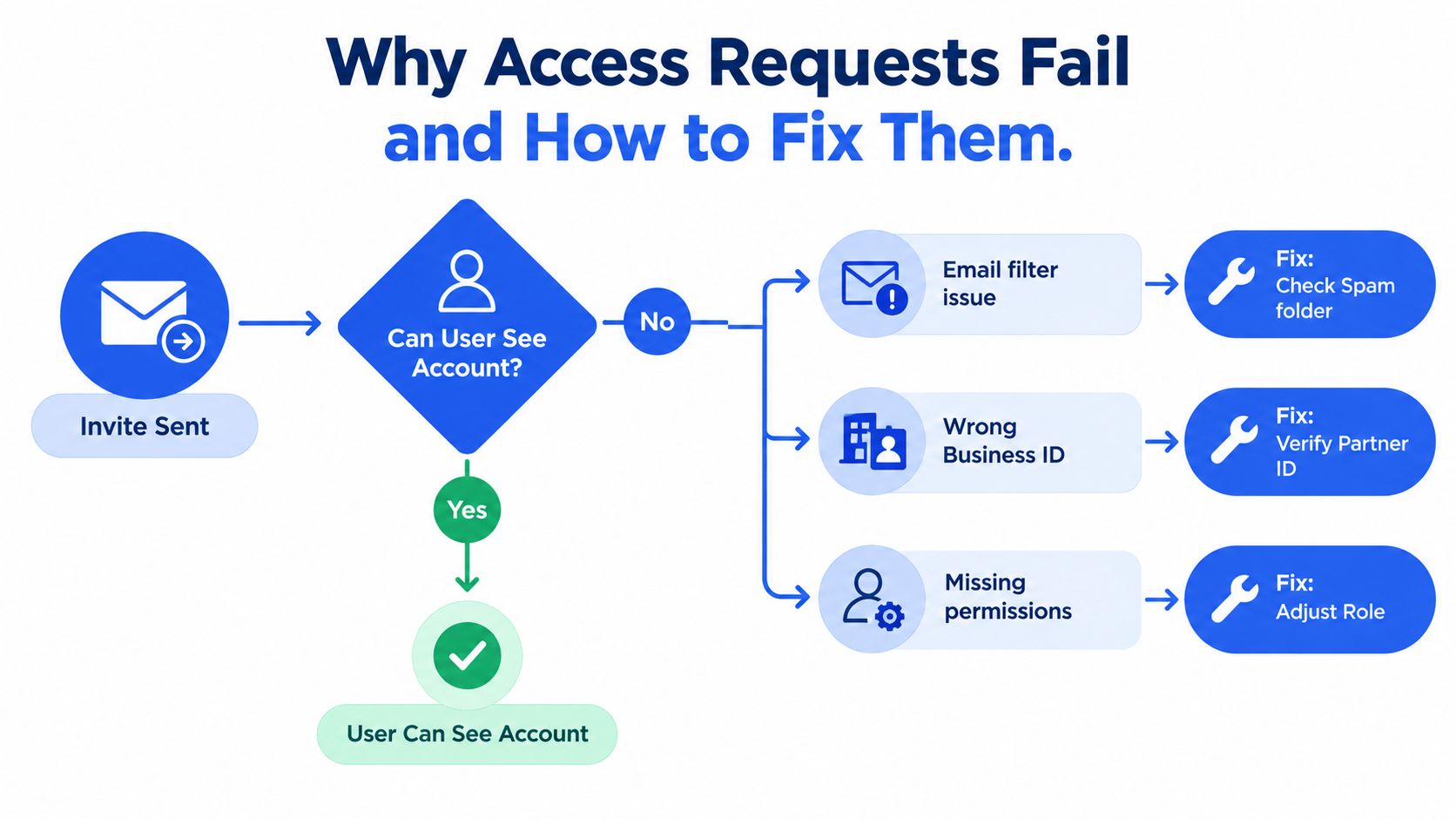
Permissions vanished after a structural change
A portfolio merge, asset move, or ownership change can alter how permissions are inherited. Don't assume the old role survived. Recheck the account under its current Business Portfolio, reassign the ad account, and re-invite affected users where necessary.
The same diagnostic applies when a partner can see the business but not the campaign tools. Inspect the chain in order:
- Is the correct Facebook profile active?
- Is the person or partner present in the right Business Portfolio?
- Is the ad account assigned?
- Is the role sufficient for the requested task?
- Does another layer restrict that permission?
Meta's portfolio model makes these layers independent. Its documentation on Business Portfolio access levels and asset permissions explains why portfolio membership alone doesn't grant access to every asset.
Security checks stop the login
A restricted Facebook profile, identity review, or two-factor authentication problem can prevent the invitee from completing setup. Resolve the account-standing issue first, then resend or recheck the invitation. For two-factor problems, an authenticator-app code is generally a more dependable recovery path than relying on a phone message, provided the invitee has already configured the app and current recovery contacts.
Don't solve a blocked login by sharing the client's credentials. That removes the audit trail and creates a larger exposure than the original access error.
Quarterly Access Review and Clean Offboarding
Access review is part of account governance, not an administrative favour. Run it quarterly, and run an immediate review whenever an employee, contractor, partner, or agency relationship changes.
Start in Business Suite and inspect People, Partners, and Assigned Assets. Compare every entry with the current team list and client agreement. Look for former staff, inactive contractors, unused partner relationships, and users who received broader permissions during an emergency launch.
The removal sequence
Remove external partner access first when the agency relationship ends. Then remove individual users and clear their assignments from the relevant Business Portfolio and ad account. This sequence keeps control with the owner while the relationship is being dismantled.
Use this checklist:
- Revoke the partner: Remove the agency or external Business Portfolio from the client's assets.
- Remove named users: Clear departing employees and contractors from People and asset assignments.
- Audit connected assets: Review pixels, offline event sets, audiences, catalogues, Pages, and Instagram accounts.
- Check billing: Confirm the correct payment method and billing administrators remain in place.
- Review permissions: Look for accidental Admin or full-control assignments.
- Document the change: Record the date, person or partner removed, assets affected, and remaining administrators.
Meta's permission model is layered, so deleting one user doesn't prove that all routes to the account are gone. A former contractor may still have access through another portfolio, a partner relationship, or a connected asset assignment. Check each route rather than relying on one removal screen.
Keep an audit trail
Export or record a permissions snapshot after the review. Include names, roles, assigned assets, business-level access, partner relationships, and the reviewer responsible for the decision. Store it where the client or leadership team can retrieve it during a dispute or account recovery process.
After revocation, allow Meta's changes to propagate before declaring the handover complete. Ask the departing party to confirm that the account no longer appears, while the owner confirms that billing, pixels, audiences, and connected accounts remain under the intended control.
A clean access system gives buyers enough authority to execute campaigns and no more. That protects the client's spend, the agency's reputation, and the operational continuity of every account you manage.
Rapid Ads supports agency and in-house workflows with team access and multi-account campaign launches without shared logins, plus bulk creative uploading, enforced naming conventions, and controls for Advantage+ creative settings. Visit Rapid Ads to see whether it fits your campaign production workflow.
